

Relying on commercial cloud servers for your smart home introduces significant vulnerabilities. When a manufacturer shuts down its remote servers, pushes forced firmware updates, or introduces surprise monthly subscriptions, your smart plugs, lights, and door sensors can instantly turn into useless electronic waste.
Migrating your smart home setup to an open-source, local-first platform like Home Assistant eliminates external internet dependency entirely. By transitioning your devices from cloud APIs to local network protocols, your automations execute in milliseconds and continue operating seamlessly even if your main internet connection goes down completely.
1. Auditing Your Devices for Local Compatibility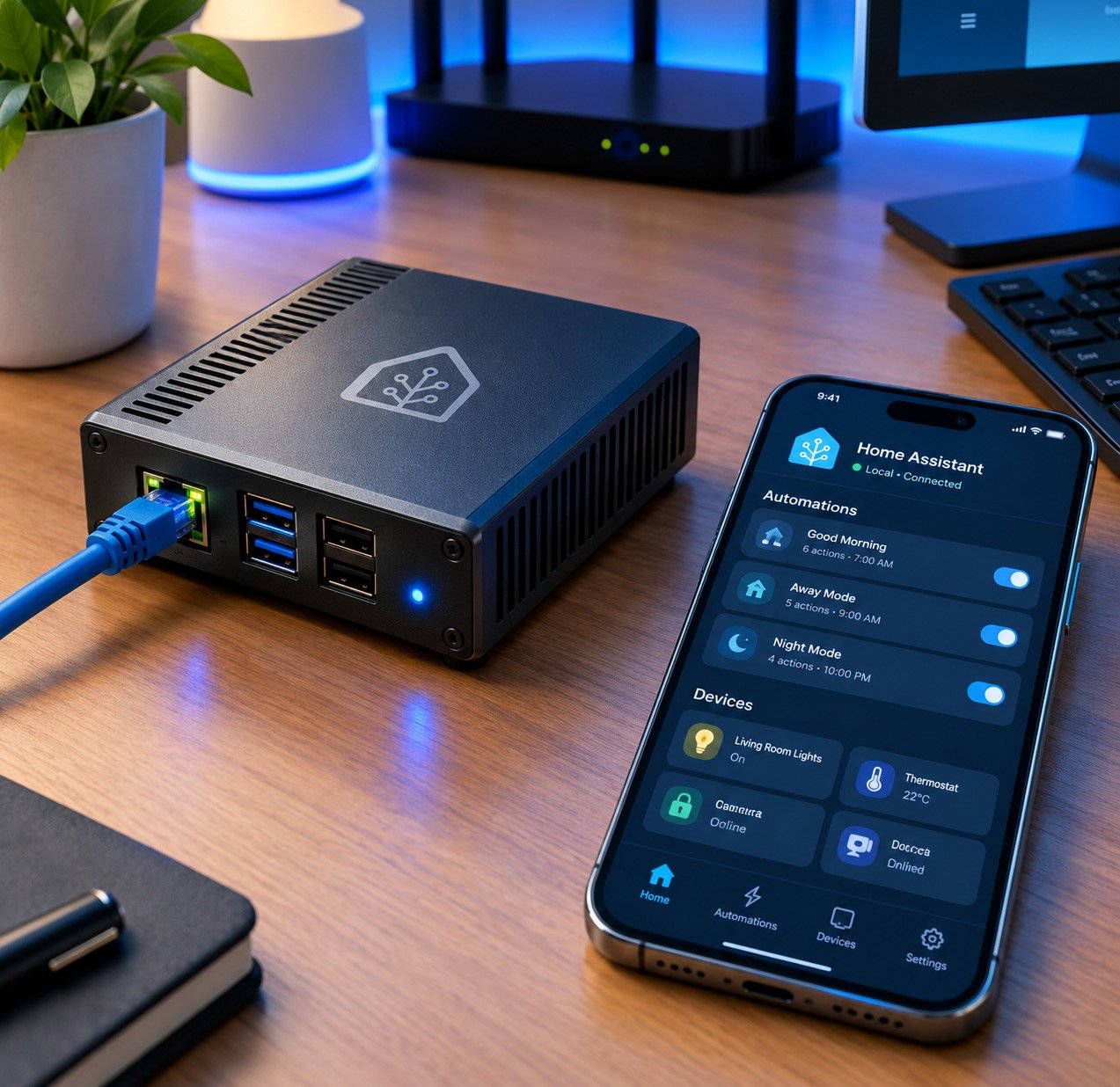
Before disconnecting your existing smart home setup, audit your hardware to identify which devices can be converted locally and which require hardware replacements.
The Three Device Migration Categories
-
Native Local Devices (Zero Modification Required): Hardware using open radio protocols such as Zigbee, Z-Wave, or Matter-over-Thread pairs directly to local USB coordinators (like a Sonoff Zigbee 3.0 dongle) attached to your Home Assistant server.
-
Convertible Wi-Fi Devices (Software Re-configuration): Popular Tuya, Smart Life, or Shelly Wi-Fi plugs can often be shifted from cloud servers to local control using local API integrations (such as LocalTuya) or home-network auto-discovery.
-
Firmware-Flashable Devices (Advanced Local Overhaul): Wi-Fi devices built on ESP8266 or ESP32 microcontrollers can be flashed with custom open-source firmware like ESPHome or Tasmota, removing factory cloud code entirely.
2. Choosing Your Local Home Assistant Hardware Engine
To host your local smart home server without relying on cloud processors, you need a low-power hardware host that remains powered on 24/7 inside your home.
| Hardware Platform | Power Consumption | Technical Complexity | Ideal Use Case |
| Home Assistant Green / Yellow | Ultra-Low (4W to 7W) | Plug-and-Play | Beginners seeking a dedicated, pre-configured local hub out of the box. |
| Used X86 Mini PC (e.g., HP EliteDesk / Dell OptiPlex) | Low (10W to 15W) | Moderate | Advanced users needing fast processing for video streams and complex local automations. |
| Raspberry Pi 4 / 5 (32GB+ SSD) | Ultra-Low (5W) | Low to Moderate | DIY enthusiasts building a compact, energy-efficient local server footprint. |
3. Step-by-Step Migration Execution Plan
Follow this structured roadmap to systematically migrate your devices without disrupting your daily living space.
Step 1: Install Home Assistant Operating System (HAOS)
Flash Home Assistant OS onto your chosen local hardware using tools like BalenaEtcher. Connect the server directly to your local Wi-Fi router via an Ethernet cable.
Step 2: Establish Your Local Radio Mesh
Unplug cloud hubs and attach a local USB radio adapter (such as a Zigbee/Thread dongle) to your Home Assistant server. Use integrations like Zigbee2MQTT or ZHA (Zigbee Home Automation) to control devices locally.
Step 3: Shift Wi-Fi Plugs and Switches to Local API Controls
For existing Tuya or Smart Life Wi-Fi devices, extract local encryption keys using developer tools and configure the LocalTuya integration in Home Assistant. This redirects device communication from remote overseas cloud servers to your internal local IP addresses.
Step 4: Recreate Automations Locally
Rebuild your lighting schedules, motion triggers, and climate controls inside Home Assistant’s built-in visual automation engine. Test your setup by disconnecting your internet router’s WAN cable to verify that every automation executes perfectly offline.
4. Securing and Maintaining Your Offline Smart Home
Achieving local control protects your household data from external surveillance, but maintaining server health requires basic local maintenance.
-
Automate Local Backups: Configure Home Assistant to generate regular, automated system backups and save them to a secondary local network drive (NAS) or local SD card.
-
Isolate IoT Hardware on a Local VLAN: Separate smart devices from your main personal computers by creating an isolated IoT Guest VLAN on your local router, blocking internet access for smart devices at the router level.
-
Expand Local Infrastructure: For a broader overview of budget hardware setups, read our complete guide to building an affordable smart home ecosystem.
Compare different local communication standards in detail through our breakdown of Matter vs. Zigbee vs. Thread for budget smart homes. Additionally, securing your internal local network builds upon core concepts outlined in our everyday online privacy and data protection tips.


Leave feedback about this