

Relying entirely on cloud-based AI platforms like ChatGPT, Claude, or Gemini comes with trade-offs: ongoing monthly subscription fees, unexpected rate limits, strict usage caps, and significant privacy concerns regarding sensitive personal or client data. If you work with proprietary corporate documents, financial records, or confidential code, sending unencrypted text to external third-party cloud servers poses unacceptable security risks.
Fortunately, consumer hardware capabilities have advanced rapidly. Modern PCs equipped with dedicated GPUs or ample system RAM can comfortably execute open-source Large Language Models (LLMs) right on your desktop.
By pairing Ollama (a lightweight engine designed to serve local open-source models) with AnythingLLM (an all-in-one desktop interface for document retrieval and autonomous agents), you can build a private, zero-subscription AI workspace on your PC.
Learning how to set up local AI agents on a PC gives you complete control over your data, eliminates internet dependency, and unlocks customized AI workflows tailored to your local files.
Hardware and Model Selection Guidelines
Before installing software, match your computer’s hardware specifications with the appropriate open-source model size:
-
Entry-Level Hardware (8 GB to 16 GB System RAM, 4–6 GB VRAM): Best paired with lightweight models such as Llama 3.2 (3B), Phi-3 Mini, or Qwen 2.5 (3B). Ideal for fast Q&A, light text generation, and quick document chats.
-
Mid-Tier Hardware (16 GB to 32 GB System RAM, 8–12 GB VRAM): Best paired with balanced models such as Llama 3.1 (8B), Qwen 2.5 (7B or 14B), or DeepSeek-R1 (7B or 14B). Ideal for deep document RAG analysis, agentic web scraping, and coding assistance.
-
High-Performance Hardware (32 GB to 64 GB+ System RAM, 16 GB+ VRAM): Best paired with heavy models such as Llama 3.1 (70B Quantized), Gemma 3 (27B), or Qwen 2.5 (32B). Ideal for complex multi-step reasoning, advanced agent flows, and dense research tasks.
Why Pair Ollama with AnythingLLM?
Running a local AI stack requires two core software components: an inference engine to run the model weights, and an application interface to turn your prompts into structured outputs, manage vector databases, and execute tool calls.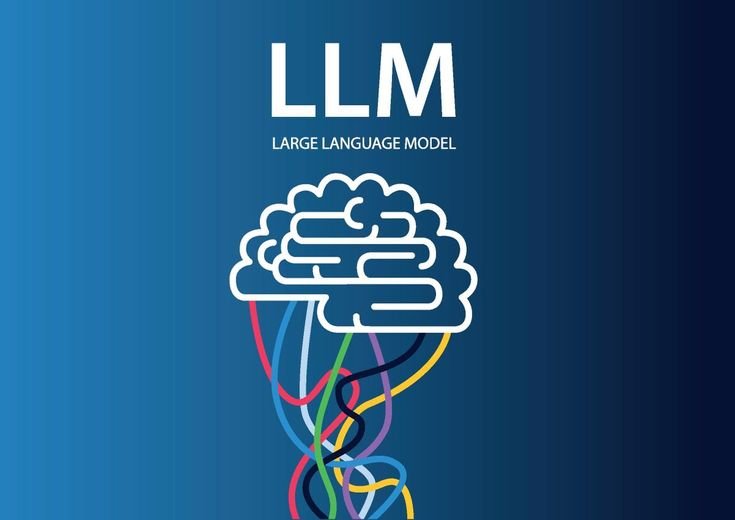
-
Ollama (The Engine): Think of Ollama as a background server for local AI. It packages model weights, neural configurations, and GPU acceleration drivers into clean commands. It serves models locally over a standardized API endpoint (port 11434) without demanding complex manual environment configurations.
-
AnythingLLM (The Workspace & Agent Interface): While Ollama handles raw text processing, AnythingLLM provides a visual workspace. It automatically splits uploaded PDFs, Word files, or text documents into searchable vectors (Retrieval-Augmented Generation / RAG), connects to local vector databases like LanceDB, and equips your local model with web browsing and file creation agent tools.
When connected together, Ollama acts as the engine, and AnythingLLM acts as the dashboard, producing a 100% private, self-contained AI desktop assistant.
Step-by-Step Guide: Setting Up Local AI Agents
Step 1: Download and Install Ollama
First, install Ollama to run model weights locally on your system hardware.
-
Download Installer: Visit the official Ollama website and download the Windows or macOS installer.
-
Run Installation: Execute the installer file. Ollama will install its background service and automatically detect whether you have an NVIDIA GPU, AMD GPU, or Apple Silicon chip to configure hardware acceleration.
-
Verify Installation: Open your command line application (Command Prompt or PowerShell on Windows, Terminal on macOS) and run the command. If configured properly, the system will print your installed version string.
Step 2: Download Open-Source LLMs and Embedding Models
Next, pull your chosen chat model and a specialized text-embedding model from the command line. The embedding model is essential because it translates your local uploaded documents into mathematical vector representations for fast semantic search.
In your terminal, execute the following commands:
-
(Downloads a versatile, fast chat model)
-
(Downloads a dedicated embedding model for document search and RAG)
Note: Model files range from 2 GB to 5 GB. Ensure you have a stable connection while downloading.
Step 3: Install and Configure AnythingLLM Desktop
Now that your local AI engine is running in the background, set up your desktop interface.
-
Download AnythingLLM: Go to and download the native Desktop version for your operating system.
-
Launch Setup Wizard: Open AnythingLLM. During the initial setup wizard screen, select Ollama as your primary LLM provider.
-
Connect Endpoint: Verify that the base URL defaults to Ollama’s local port. AnythingLLM will scan your system and display it in the dropdown menu.
-
Configure Embedding Engine: In the Embedding Provider selection screen, choose Ollama and select it as your active embedder.
-
Set Vector Database: Keep LanceDB as your default local vector database. LanceDB runs directly on your hard drive with zero cloud configuration required.
Step 4: Create a Workspace and Ingest Documents (RAG)
Workspaces keep your contexts, chat histories, and uploaded files separated logically.
-
Create Workspace: Click + New Workspace in the AnythingLLM sidebar and name it (e.g., “Legal Contracts,” “Research Papers,” or “Codebase Docs”).
-
Upload Local Files: Click the document upload button inside your workspace. Drag and drop local PDFs, text files, Word documents, or CSV spreadsheets.
-
Embed to Workspace: Select your files and click Save and Embed. AnythingLLM will parse your documents, split them into text chunks, convert them into vectors, and store them locally.
-
Test Local Retrieval: Ask a specific question in the chat bar regarding your uploaded files. The local model will cite specific document chunks to answer your query accurately without hallucinations.
Step 5: Enable Local Agent Capabilities and Tools
Unlike simple chatbots that only generate text, AI Agents can reason, select tools, browse web pages, and summarize files autonomously.
-
Access Agent Settings: Click the gear icon (Settings) in AnythingLLM and navigate to Agent Skills.
-
Toggle Built-In Agent Tools: Enable key agent tools, such as Web Browsing & Scraping (fetches live web content), Save Files to Disk (writes summaries into local text files), and Document Summarization.
-
Invoke the Agent: In your workspace chat box, type ” Invoke ” followed by your command.
The local agent will break down the instruction into sequential reasoning steps, invoke the necessary web or file tools, process the data locally, and execute your request.
4 Best Practices for Local AI Performance
Running machine learning models locally on consumer hardware requires managing system resource consumption:
-
Keep Background Apps Closed: AI inference relies heavily on free system RAM and GPU VRAM. Close heavy background applications when executing complex agent flows.
-
Adjust Context Window Sizes: In AnythingLLM workspace settings, adjust your context window (e.g., 4096 tokens or 8192 tokens) based on your system memory limits. Larger context windows allow the agent to process longer documents at once but require more RAM.
-
Experiment with Quantized Models: Models labeled with 4-bit quantization reduce memory footprints significantly with minimal loss in answer quality.
-
Keep Models Updated: Open-source models evolve rapidly. Run periodically to pull updated model weights and performance optimizations.
Combining Offline AI Capabilities with a Lean Workspace
Building an offline, private AI stack allows you to take control of your technical infrastructure without accumulating software debt or recurring expenses.
Once your local AI agent framework is configured, maintaining an organized digital environment prevents system slowdowns. Structuring your computer folders and file downloads using guidelines from minimalist digital workspace deep work makes it easier to organize workspace directories and feeds clean data into your local vector databases.
Furthermore, if you travel or work across remote networks, combining an offline local AI setup with strict connection protocols—such as those detailed in cybersecurity essentials for remote freelancers on public wi-fi ensures that sensitive client research and proprietary code bases remain protected from external network breaches.
Local AI Agent Setup Summary Checklist
-
Engine Installation: Install Ollama and verify command-line access.
-
Model Downloads: Pull a chat model and an embedding model.
-
Desktop Workspace: Install AnythingLLM, set Ollama as the provider, and choose LanceDB as your vector store.
-
Document Ingestion: Upload private PDFs or documents to a dedicated workspace for instant RAG search.
-
Agent Activation: Enable Agent Skills, configure web browsing, and use triggers to execute automated multi-step tasks.
By deploying Ollama alongside AnythingLLM, you transform your desktop PC into a private, highly capable AI station. You get full document retrieval, autonomous agent actions, and powerful language model reasoning, all operating locally on your own terms.
Want More Insights to Grow Your Digital Presence & Daily Productivity?
Whether you need to fix your website’s technical performance or build a smarter, burnout-free work routine, NewsUpTo delivers practical guides to keep you ahead.

Leave feedback about this