

When you spend eight to twelve hours a day deep in code syntax or drafting long-form content, your physical workstation is your most critical tool. Yet, most developers and writers configure their desks based on visual aesthetics or default factory chair settings rather than biomechanical safety.
Prolonged sitting in poor physical postures creates repetitive strain injuries (RSI), lower back inflammation, tension headaches, and severe wrist strain. Over months and years, these physical micro-traumas reduce focus, cause chronic fatigue, and can even cut a developer or writer’s productive career short.
Following a proper ergonomic workstation setup guide long hours coding writing requires requires configuring your chair, desk, monitors, keyboard, and lighting to support a neutral body posture that minimizes physical stress.
Quick Summary: The Ergonomic Alignment Matrix
Before diving into specific hardware tweaks, use this quick reference matrix to verify your basic body alignment:
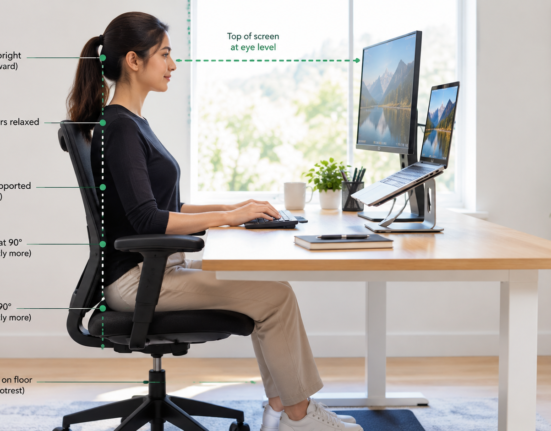
| Body Area | Target Posture | Key Adjustment | Common Error to Avoid |
| Eyes & Head | Level gaze, neutral neck position. | Top line of screen text at or slightly below eye level. | Tilting head forward or craning neck toward a low laptop screen. |
| Elbows & Arms | 90 to 100-degree open angle at elbows. | Armrests level with desk surface; forearms parallel to floor. | Typing with floating elbows or reaching forward to reach the keyboard. |
| Spine & Lower Back | Natural “S” curve maintained with firm support. | Chair lumbar cushion positioned directly in the small of your lower back. | Slouching forward or sitting on a flat, unsupportive chair cushion. |
| Knees & Feet | 90-degree bend at knees, feet flat on the floor. | Adjust chair height or place a firm footrest under feet. | Dangling feet or tucking legs underneath the chair frame. |
Why Biomechanics Matter for Coders and Writers
When you write code or prose, your brain enters a state of deep flow. During these long focus sessions, your subconscious body defaults to whatever physical position gravity dictates.
If your monitor is too low, your head, which weighs 10 to 12 pounds in a neutral position, tilts forward. At a 45-degree forward tilt, the effective weight exerted on your cervical spine increases to roughly 49 pounds. This constant mechanical strain pulls on upper back muscles, causing chronic neck stiffness and tension headaches.
Official safety guidelines published in the OSHA Computer Workstations eTool emphasize that staying in a static, non-neutral body position restricts local blood flow, accelerates muscle fatigue, and increases susceptibility to long-term nerve compression injuries like Carpal Tunnel Syndrome.
5 Steps to Build a Pain-Free Ergonomic Setup
1. Dial in Your Chair and Lumbar Support First
Your chair dictates how the rest of your body interacts with your desk. Never adjust your chair to match your desk height first; adjust your chair to fit your body, then modify your desk and peripherals around it.
-
Support the Lower Curve: Adjust your chair’s lumbar support so it fits firmly into the natural curve of your lower back. If your chair lacks built-in lumbar controls, insert a dedicated ergonomic lumbar roll.
-
Position Your Hips Correctly: Sit all the way back in the seat pan. Ensure a two-inch gap remains between the back of your knees and the edge of the seat cushion to prevent restricting circulation in your legs.
-
Set Armrest Heights: Adjust armrests so your shoulders remain completely relaxed. Your elbows should rest gently at a 90 to 100-degree angle without pushing your shoulders upward or forcing you to lean sideways.
2. Set Monitor Height, Distance, and Angle
Incorrect monitor placement is the primary trigger for forward head posture and neck fatigue among software engineers using multiple displays.
-
Height Alignment: Position your primary monitor so the top third of the display screen aligns directly with your horizontal eye level. When looking at your screen, your eyes should look slightly downward without bending your neck.
-
Arm’s Length Distance: Place your main monitor roughly an arm’s length away (20 to 30 inches from your face). If text feels too small at that distance, increase your operating system font scaling rather than pulling the screen closer.
-
Laptop Dual Setup: If you use a laptop as your main machine, place it on a laptop riser or external monitor arm and plug in a separate keyboard and mouse. Working directly on a flat laptop screen for long hours forces severe neck flexion.
3. Optimize Keyboard and Mouse Placement for Wrists
Wrist pain and forearm strain are major risks for programmers and writers making millions of keystrokes annually.
-
Keep Wrists Straight (Neutral): Your wrists should float flat in a straight line with your forearms when typing. Avoid resting your palms heavily on sharp desk edges or squishy wrist rests while actively typing, as this compresses the carpal tunnel.
-
Negative Tilt Keyboard Tray: If possible, angle your keyboard slightly away from you (negative tilt). This prevents upward wrist extension, which is a leading cause of tendon strain.
-
Consider Split or Ergonomic Keyboards: If you suffer from shoulder tightness or wrist discomfort, transition to a split ergonomic keyboard (e.g., Ergodox, Alice layout, or Microsoft Sculpt). Split layouts keep your shoulders open and prevent wrist pronation.
4. Adjust Desk Height and Alternate Between Sitting and Standing
Static posture, even a perfect one, eventually causes physical fatigue. Incorporating dynamic movement throughout your workday keeps circulation active.
-
Desk Height Calibration: When sitting, your desk surface should rest at exactly the height where your elbows relax comfortably at 90 degrees while your shoulders remain un-hunched.
-
Use a Height-Adjustable Standing Desk: If using a sit-stand desk, transition between sitting and standing every 45 to 60 minutes.
-
Standing Posture Check: When standing, keep your knees slightly unlocked, distribute weight evenly across both feet, and avoid leaning heavily on one hip.
5. Perfect Ambient Desk Lighting and Reduce Glare
Physical fatigue is not restricted to muscles; digital eye fatigue severely degrades energy levels and daily focus.
-
Eliminate Direct Glare: Position your monitor perpendicular to windows rather than directly in front of or facing them. Direct sunlight creates harsh glare that forces you to squint.
-
Use an Over-Monitor Light Bar: Attach an asymmetric monitor light bar to the top of your display screen. Light bars illuminate your physical desk workspace and documents without casting reflections on the screen display.
-
Follow Screen Tint Best Practices: Match your monitor’s brightness to the ambient light in your room, and activate blue-light reduction filters (like Night Light or f.lux) during evening work sessions.
Integrating Physical Posture with Digital Focus
Optimizing your physical health at your desk works hand-in-hand with maintaining a calm digital environment.
When configuring your physical workspace, pair your clean desk layout with an organized screen setup. Applying strategies from minimalist digital workspace deep work eliminates digital clutter, reducing cognitive stress while your physical ergonomics handle bodily comfort.
Additionally, if you travel or occasionally work from external locations, maintain security and posture precautions. Reviewing cybersecurity essentials for remote freelancers on public wi-fi helps you protect client data and hardware when working away from your main home setup.
Ergonomic Setup Checklist for Developers and Writers
-
Chair: Lumbar support fitted into the small of your back, hips back, 2-inch knee gap, feet flat on the floor.
-
Monitor: Top line of text at eye level, screen placed at arm’s length, no direct window glare.
-
Keyboard & Mouse: Wrists neutral and straight, elbows at 90 to 100 degrees, no floating forearms.
-
Movement: Alternate sitting and standing positions, take short micro-breaks every 30 minutes.
-
Lighting: Monitor light bar installed, screen brightness calibrated to ambient room lighting.
By taking time to adjust your workstation mechanics, invest in supportive equipment, and build dynamic movement habits, you eliminate physical strain, protect your long-term health, and sustain effortless focus through long hours of coding and writing.
Want More Insights to Grow Your Digital Presence & Daily Productivity?
Whether you need to fix your website’s technical performance or build a smarter, burnout-free work routine, NewsUpTo delivers practical guides to keep you ahead.





Leave feedback about this