

If you spend six to ten hours a day looking at a laptop monitor, smartphone screen, or dual-display workstation, you have likely experienced end-of-day eye fatigue, dry irritation, throbbing tension headaches behind your temples, or temporary blurred vision.
These symptoms are not just signs of a long workday. They are the classic clinical markers of Computer Vision Syndrome (CVS), also commonly referred to as Digital Eye Strain.
Unlike reading static ink on a physical printed page, reading digital text forces your eyes to constantly refocus on tiny pixels emitting continuous light. Over consecutive hours, the ciliary muscles inside your eyes tire out, your natural blink rate drops by over 50 percent, and your eye’s tear film evaporates.
Learning how to fix digital eye strain and computer vision syndrome for desk workers requires optimizing your monitor display settings, restructuring your desk lighting, restoring natural tear film moisture, and adopting disciplined visual focus breaks.
Quick Summary: Symptom & Immediate Fix Matrix
Before adjusting your physical setup, use this diagnostic matrix to match your specific ocular symptom with its primary environmental cause and fix:
| Primary Symptom | Root Environmental Cause | Immediate Technical Fix |
| Dry, Burning Eyes | Reduced blink rate causing rapid tear film evaporation. | Apply conscious blinking resets and use a cool-mist desk humidifier. |
| Throbbing Tension Headaches | Screen glare, high contrast, or harsh blue light exposure. | Match monitor brightness to room lighting and reposition relative to windows. |
| Blurred or Double Vision | Ciliary muscle fatigue from prolonged static focal distance. | Enforce the 20-20-20 rule to relax internal eye focusing muscles. |
| Neck & Shoulder Stiffness | Leaning forward or squinting due to small OS text scaling. | Increase OS text scaling to 125% and bring monitors to arm’s length. |
What Causes Computer Vision Syndrome?
According to clinical studies published by the American Optometric Association (AOA), Computer Vision Syndrome affects up to 90 percent of individuals who spend more than three continuous hours per day in front of digital screens.
The condition stems from three distinct physiological factors:
-
Reduced Blink Rate: Humans naturally blink approximately 15 to 20 times per minute to spread a fresh layer of lubricating tear film over the cornea. When staring intently at a digital monitor, your blink rate drops to 5 to 7 times per minute. This leads to corneal dryness, burning sensations, and red eyes.
-
Contrast and Pixel Flicker: Printed characters on physical paper have sharp edges and high contrast against white pages. Digital characters, however, are composed of tiny pixels that fade at the edges and pulse with invisible refresh-rate flicker, forcing your internal eye muscles to work constantly to maintain focus.
-
Improper Workspace Lighting: Placing a bright screen in a dim room or placing a screen directly opposite an unshaded window creates extreme contrast glare that exhausts your pupils.
6 Practical Steps to Fix Digital Eye Strain
1. Implement the 20-20-20 Visual Relief Rule
The simplest and most effective way to prevent ciliary muscle spasm is giving your eyes structured focal breaks throughout the workday.
-
The Core Formula: Every 20 minutes, look away from all digital screens at an object at least 20 feet away for at least 20 seconds.
-
Why It Works: Looking at nearby objects (such as a laptop screen 20 inches away) requires active muscle contraction inside your eyes. Looking at objects 20 feet away allows those internal focusing muscles to completely relax.
-
Automate Reminders: Use lightweight timer apps like Stretchly or EyeLeo to display a gentle, non-intrusive break prompt on your desktop screen every 20 minutes.
2. Calibrate Monitor Brightness, Contrast, and Text Scaling
Improper display settings force your eyes to squint and strain just to parse code syntax, spreadsheets, or long articles.
-
Match Ambient Brightness: Your monitor should never act as a primary light source in a dark room. Adjust your screen brightness so it matches the ambient brightness of the room behind it. A quick test: if your monitor looks like a glowing lightbulb in the room, it is too bright; if it looks dull and gray, it is too dim.
-
Increase Display Text Scaling: Never force yourself to lean forward to read small fonts. Increase your operating system text scaling settings (125% or 150%) so you can comfortably read text while keeping your head resting naturally back against your chair’s headrest.
-
Upgrade Monitor Refresh Rate: If you are buying a new workspace monitor, choose a display with a high refresh rate (90 Hz or 120 Hz) and a flicker-free backlight panel. Higher refresh rates reduce subconscious motion jitter when scrolling through documents.
3. Eliminate Direct Screen Glare and Optimize Ambient Lighting
Harsh room lighting and window reflections account for a massive percentage of daily screen fatigue.
-
Reposition Relative to Windows: Never place your computer monitor directly facing a bright window (which causes direct glare on the glass) or directly backed against an unshaded window (which forces your eyes to face harsh background sunlight). Position your monitor perpendicular to side windows.
-
Use an Over-Monitor Light Bar: Instead of relying on harsh overhead ceiling lights or desk lamps that cast reflections on your glass screen, attach an asymmetric monitor light bar to the top of your display frame. Light bars project light downward onto your physical desk without reflecting off the screen surface.
-
Apply Matte Screen Protectors: If you work in an environment with uncontrollable overhead lighting, install a anti-glare matte screen filter to diffuse specular reflections.
4. Adjust Color Temperature and Warmth Settings
Short-wavelength blue light emitted by LED displays scatters easily, making visual focus harder for your eyes to maintain while disrupting your body’s natural circadian rhythm.
-
Activate Warm Color Profiles: Enable built-in night modesn such as Night Light on Windows or Night Shift on macOS to reduce blue light emissions.
-
Shift Temperature for Evening Work: Set your screen color temperature to a warmer profile (around 3400K to 4000K) during long writing, editing, or coding sessions.
-
Consider Dedicated Computer Glasses: If you wear prescription lenses, request an anti-reflective coating with a subtle blue-light filter to cut glare from overhead fluorescent lighting and digital screens.
5. Restore Corneal Moisture and Practice Complete Blinking
When focused on detailed tasks, people not only blink less frequently, but they also perform incomplete blinks closing their eyelids only halfway before opening them again.
-
Practice Complete Blinking: Periodically close your eyes completely, hold them shut for two seconds, and open them naturally. This squeezes the meibomian glands in your eyelids, releasing natural oils that lock in eye moisture.
-
Use Preservative-Free Lubricating Eye Drops: Keep preservative-free artificial tears at your desk. Using a drop or two midway through your workday lubricates the eye surface without causing chemical dependence or rebound redness.
-
Add a Desk Humidifier: Air-conditioned office buildings and heated home offices often maintain extremely low relative humidity. A compact cool-mist humidifier placed on your desk keeps ambient air moist, reducing tear evaporation.
6. Align Display Distance and Viewing Angles
Where you place your computer monitor physically impacts both your ocular health and spinal alignment.
-
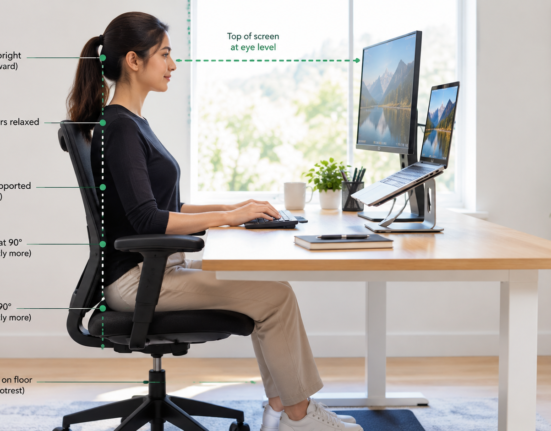
Maintain Arm’s Length Distance: Position your display screen roughly 20 to 30 inches away from your face (approximately one arm’s length).
-
Set Top-Line Viewing Angles: Position the top edge of your monitor screen directly at horizontal eye level. This ensures that when you look at the center of the display screen, your gaze angles downward at roughly 15 to 20 degrees.
-
Why Downward Angle Matters: Looking slightly downward allows your upper eyelids to cover a larger portion of your eyeball’s surface area, significantly reducing tear evaporation and easing eye strain.
Aligning Physical Ergonomics with Ocular Comfort
Eliminating screen-induced eye fatigue works best when paired with proper physical posture and a clean digital environment.
When adjusting your screen height and desk position to relieve eye strain, make sure to align your chair, keyboard, and lumbar support simultaneously. Applying guidelines from an ergonomic workstation setup guide for long hours of coding and writing ensures that as your eyes relax, your neck, back, and wrists remain free from physical strain.
Additionally, reducing visual complexity on your screen helps keep eye movements smooth and relaxed. Following practical steps from minimalist digital workspace deep work removes unnecessary background badges and cluttered desktop icons, reducing the cognitive and visual effort required during long work blocks.
Computer Vision Syndrome Relief Checklist
-
20-20-20 Rule: Take a 20-second break every 20 minutes to look at an object 20 feet away.
-
Brightness & Contrast: Calibrate screen brightness to match your room lighting, and increase text scaling.
-
Glare Control: Position monitors perpendicular to windows and use an asymmetric monitor light bar.
-
Hydration & Blinking: Practice complete blinks, use preservative-free artificial tears, and run a desk humidifier.
-
Screen Placement: Set your monitor an arm’s length away with the top edge at horizontal eye level.
By calibrating your monitor display, eliminating room glare, restoring eye moisture, and taking disciplined visual breaks, you can completely eliminate Computer Vision Syndrome, protect your vision, and work comfortably for hours.
Want More Insights to Grow Your Digital Presence & Daily Productivity?
Whether you need to fix your website’s technical performance or build a smarter, burnout-free work routine, NewsUpTo delivers practical guides to keep you ahead.





Leave feedback about this