
Losing precious family photos due to a broken, lost, or upgraded phone is a stressful experience. Relying solely on device storage leaves your memories vulnerable to sudden hardware failure.
Fortunately, setting up cloud backup takes only a few minutes. Once configured, your phone automatically saves every new photo to secure online storage in the background.
Below is a complete, beginner-friendly guide covering how to backup phone photos to cloud for beginners, featuring step-by-step instructions for both iPhone and Android devices.
1. Backing Up Photos on an iPhone (Using iCloud)
Apple devices come with built-in cloud storage called iCloud, making photo backup seamless once enabled in your settings.
Step 1: Open Your iPhone Settings
Tap the Settings app on your home screen, then tap your Apple ID name at the very top of the menu.
Step 2: Navigate to iCloud Settings
Tap on iCloud, then select Photos from the list of cloud services.
Step 3: Enable iCloud Photos
Toggle the switch next to Sync this iPhone to the ON position. Your existing photos will begin uploading automatically whenever your phone connects to Wi-Fi.
[ Open Settings ] ──> [ Tap Apple ID ] ──> [ Select iCloud Photos ] ──> [ Turn on Sync ]
2. Backing Up Photos on Android (Using Google Photos)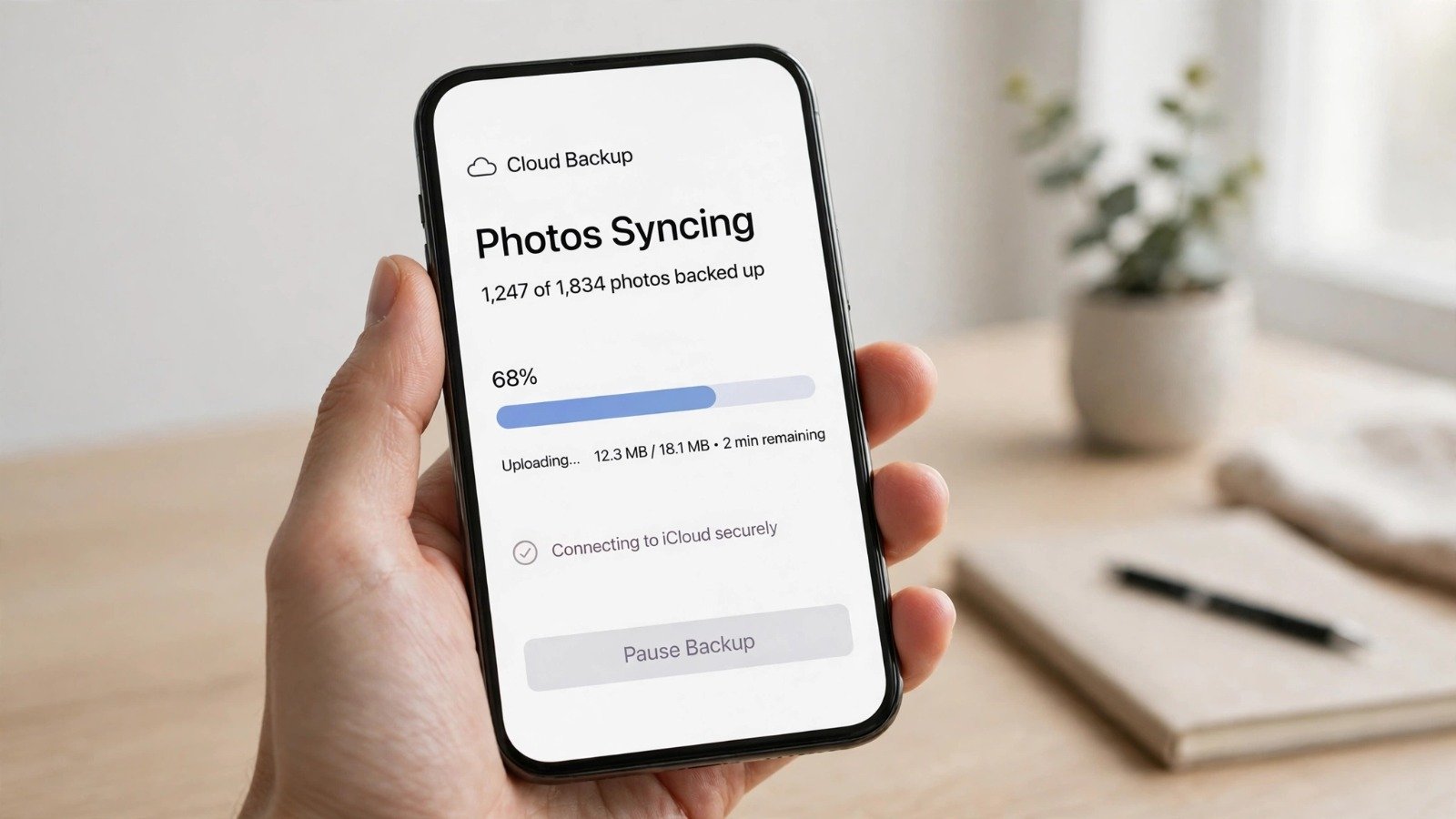
Most Android devices come pre-installed with Google Photos, which offers reliable cloud storage linked to your Google account.
-
Open Google Photos: Find and launch the Google Photos app on your Android phone or tablet.
-
Sign In: Tap your profile icon in the top right corner and log in with your Gmail account if you are not already signed in.
-
Enable Backup: Tap Turn on backup when prompted, or go to Photos settings > Backup and toggle the switch to ON.
-
Choose Upload Quality: Select your preferred upload size (Storage Saver or Original Quality) depending on your available cloud storage space.
| Cloud Service | Best Used For | Free Storage Limit |
| iCloud Photos | iPhone and Apple ecosystem users | 5 GB free (upgradable) |
| Google Photos | Android users and cross-platform access | 15 GB free (shared with Gmail/Drive) |
| Microsoft OneDrive | Windows PC integration and file sharing | 5 GB free (upgradable) |
Additionally, keeping your phone storage clean and optimized connects smoothly with tips from how-to-clear-other-storage-on-iphone-simple-steps. Furthermore, boosting your device speed using guides like how-to-speed-up-a-slow-android-phone-easily ensures your phone runs smoothly while handling media sync.
3. Best Practices to Keep Your Cloud Storage Secure
Setting up your backup is the first step; maintaining digital hygiene ensures your personal photos remain protected online.
Step 1: Enable Two-Factor Authentication (2FA)
Secure your Apple ID or Google account with two-factor authentication so unauthorized users cannot access your cloud storage even if they guess your password.
Step 2: Regularly Check Backup Status
Periodically open your Google Photos or iCloud app to verify that recent pictures have uploaded successfully and that sync errors are not occurring.
Step 3: Manage Shared Device Access
If you log into your cloud account on a shared computer or tablet, always remember to sign out completely when you finish viewing your photos.
Furthermore, securing your home network environment while uploading large photo batches pairs naturally with advice from how-to-check-who-is-on-your-wifi-network.
Want More Insights to Grow Your Digital Presence & Daily Productivity?
Whether you need to fix your website’s technical performance or build a smarter, burnout-free work routine, NewsUpTo delivers practical guides to keep you ahead.





Leave feedback about this