
Apple devices capture high-quality photos using the HEIC (High Efficiency Image Container) format by default. While HEIC files take up less storage space on your phone, they can occasionally cause compatibility headaches when you try to open, upload, or share them on Windows computers or older websites that only accept standard JPG files.
Fortunately, you do not need to download sketchy third-party converter apps to fix this issue. iOS includes built-in settings and quick sharing tricks to convert your images instantly.
Below is a complete, beginner-friendly guide covering how to convert HEIC to JPG on iPhone easily using native tools.
1. How to Change iPhone Camera Settings to Save as JPG Automatically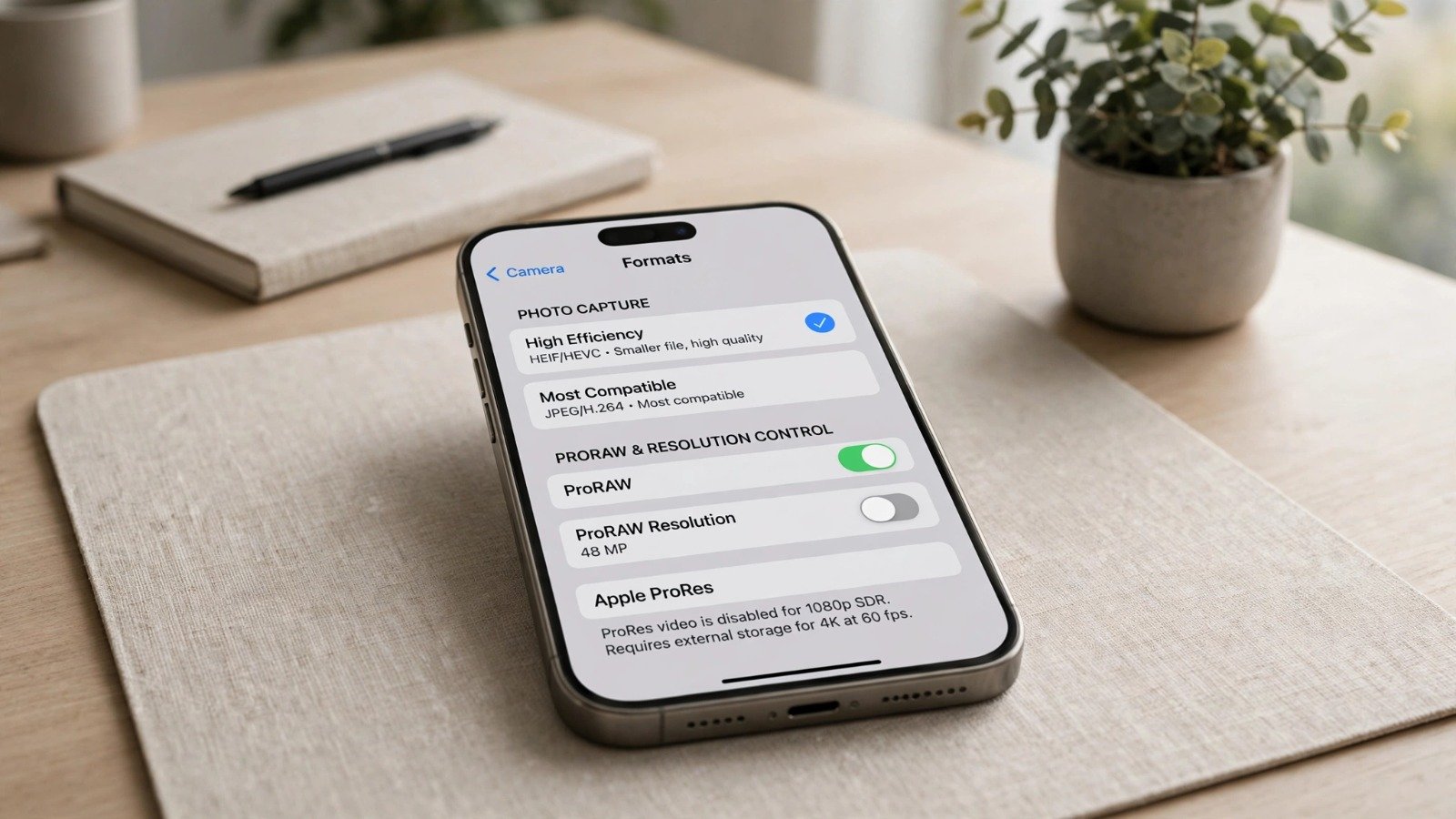
The easiest way to avoid HEIC compatibility issues altogether is to configure your iPhone camera to capture new photos directly in JPEG format.
-
Open iPhone Settings: Tap on the Settings app on your home screen.
-
Navigate to Camera: Scroll down and tap on Camera, then select Formats.
-
Choose Most Compatible: Tap to select Most Compatible instead of High Efficiency. Your iPhone will now save all future photos as standard JPEGs.
[ Open Settings ] ──> [ Select Camera ] ──> [ Tap Formats ] ──> [ Choose Most Compatible ]
2. How to Convert Existing HEIC Photos to JPG
If you already have HEIC photos saved in your camera roll and want to convert them to JPG, you can do so in seconds without downloading extra software.
Method 1: The Files App Drag-and-Drop Trick
Open the Photos app, select the image you want to convert, and tap the Share button. Choose Copy Photo. Next, open the Files app, long-press on any empty space inside a folder, and tap Paste. iOS will automatically convert the HEIC file into a standard JPEG image.
Method 2: Share via Email or AirDrop
When you share photos from your iPhone to another device or email address via the native share sheet, iOS often gives you the option to automatically convert them to JPEGs for better compatibility.
| Conversion Method | Effort Level | Best For |
| Most Compatible Setting | Very Low | Preventing HEIC files from ever being created |
| Files App Paste Trick | Low | Converting existing photos instantly on device |
| Cloud Sharing / Email | Low | Sending standard JPEGs to Windows computers |
Additionally, managing your device storage and keeping your phone organized connects smoothly with tips from how-to-clear-whatsapp-storage-on-android-and-iphone. Furthermore, cleaning up your photo library pairs nicely with advice from how-to-delete-duplicate-photos-on-iphone-free.
3. Smart Habits to Manage iPhone Photo Formats
Adopting smart file-sharing habits prevents storage clutter and ensures smooth media transfers.
Rule 1: Keep Originals for Cloud Backups
If you use iCloud Photos to back up your library, keeping your camera set to High Efficiency saves valuable cloud storage space while letting you download JPEGs when needed.
Rule 2: Use Web Converters Sparingly
If you ever need to convert bulk files on a computer, use trusted web-based converters rather than installing unverified desktop software that may contain adware.
Furthermore, keeping your device secure while managing personal files pairs naturally with cybersecurity advice from how-to-check-if-your-email-was-breached-online.
Want More Insights to Grow Your Digital Presence & Daily Productivity?
Whether you need to fix your website’s technical performance or build a smarter, burnout-free work routine, NewsUpTo delivers practical guides to keep you ahead.




Leave feedback about this