

In the digital landscape, website speed is a critical factor for user retention and search engine rankings. When a visitor lands on your site, every extra second of loading time increases the likelihood that they will abandon the page and head to a competitor.
For WordPress site owners, performance issues are common. Because WordPress relies on a dynamic database structure, themes, and plugins, improper configuration can quickly lead to slow loading times. Knowing how to speed up wordpress website performance is essential for keeping visitors engaged, improving search visibility, and driving business growth.
This comprehensive guide covers actionable steps you can take today to diagnose speed bottlenecks and build a fast, high-performing WordPress site.
Quick Summary: The High-Impact Speed Checklist
If you need a rapid performance boost, focus on these fundamental optimizations first:
-
Upgrade to High-Performance Hosting: Move away from slow, shared hosting to managed WordPress or cloud hosting.
-
Implement Caching: Use a robust caching plugin to serve pre-rendered HTML pages to visitors.
-
Compress and Convert Images: Convert large image files to WebP format and enable lazy loading.
-
Use a Content Delivery Network (CDN): Serve static assets from global edge servers closest to your users.
-
Audit and Clean Up Plugins: Remove bloated, inactive, or duplicate plugins that slow down page execution.
Why WordPress Speed Matters for SEO and Revenue
Page load speed is more than just a convenience; it directly affects your bottom line and search engine performance.
1. Search Engine Rankings and Core Web Vitals
Google uses page experience as an explicit ranking signal. Metrics like Largest Contentful Paint (LCP), Interaction to Next Paint (INP), and Cumulative Layout Shift (CLS) collectively known as Core Web Vitals evaluate how quickly and smoothly your site loads. Slow loading speeds directly lower your organic ranking potential.
2. User Engagement and Conversion Rates
Consumer expectations for speed are high. Studies show that a delay of just one second in page response time can reduce conversions by up to 7 percent. Fast sites create trust, reduce bounce rates, and encourage visitors to read more content or complete a purchase.
Step-by-Step Guide: How to Speed Up Your WordPress Site
1. Measure Your Baseline Performance
Before making any changes, benchmark your site’s current load speeds using reliable testing tools:
-
Google PageSpeed Insights: Measures real-world user performance data and provides detailed recommendations for Core Web Vitals.
-
GTmetrix: Offers in-depth waterfall charts showing exactly which scripts, images, or stylesheets take the longest to load.
-
Pingdom Speed Test: Allows you to test page load times from different geographical locations worldwide.
Document your initial loading time, performance score, and total page size so you can measure improvements after applying fixes.
2. Choose Quality Managed WordPress Hosting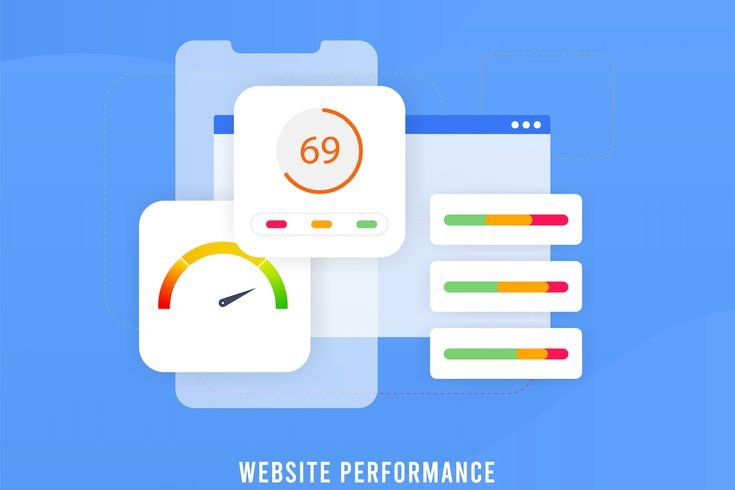
Your hosting infrastructure is the foundation of your site’s performance. Cheap, shared web hosting stacks hundreds of websites onto a single server, causing resource contention and slow server response times (Time to First Byte, or TTFB).
Upgrading to high-performance managed WordPress hosting or cloud servers ensures your site receives dedicated server CPU, RAM, and optimized caching architectures. Fast hosting provides an immediate foundation for speed that plugins alone cannot match.
3. Install a Comprehensive Caching Plugin
By default, every time a user visits a WordPress page, the server executes PHP code, queries the MySQL database, and constructs an HTML file on the fly. Caching saves a pre-built static copy of the page, serving it instantly to future visitors without taxing the server.
Top-tier caching plugins handle several critical speed functions:
-
Page Caching: Generates static HTML versions of your pages.
-
Browser Caching: Stores static files (like logos and stylesheets) on the visitor’s device for faster subsequent visits.
-
GZIP or Brotli Compression: Compresses file sizes before sending them to the user’s browser.
Popular caching solutions include WP Rocket, LiteSpeed Cache, and W3 Total Cache.
4. Optimize and Compress Your Images
Large, uncompressed image files are often the single largest contributor to slow page load times. High-resolution photos taken directly from stock sites or smartphones can easily exceed 5 MB, severely dragging down performance.
Follow these best practices for image optimization:
-
Resize Images Before Uploading: Scale images to the exact dimensions required by your layout rather than relying on browser resizing.
-
Convert to WebP Format: WebP images provide superior compression and quality compared to traditional JPEG or PNG formats.
-
Enable Lazy Loading: Delay the loading of off-screen images until the user scrolls down to them. WordPress includes native lazy loading, but caching plugins offer deeper control.
Use automated optimization plugins like ShortPixel, Imagify, or Smush to compress images seamlessly upon upload.
5. Minify and Combine CSS and JavaScript Files
Theme stylesheets, plugin scripts, and custom code create multiple HTTP requests when a page loads. Excess code, line breaks, and developer comments add unnecessary weight to these files.
Minification strips out whitespace, comments, and redundant characters without altering functionality. Combining small files reduces total HTTP requests, speeding up render times. Caching plugins can handle minification safely, but always test your frontend layout after enabling file optimization to prevent visual glitches.
6. Implement a Content Delivery Network (CDN)
If your website server is located in Dallas, Texas, a visitor accessing your site from London or Sydney will experience longer latency due to geographical distance.
A Content Delivery Network (CDN) maintains a global network of servers. It caches your static assets (images, CSS, JS) and serves them from the data center closest to the end user. Leading CDNs like Cloudflare or Bunny.net dramatically reduce server load and improve speed for a global audience.
7. Clean Up Your Plugin Architecture and Theme
Having dozens of active plugins running background scripts, tracking pixels, and external calls creates heavy resource overhead.
Audit your site regularly:
-
Deactivate and Delete Unused Plugins: Remove any plugin you are not actively using.
-
Replace Heavy Plugins: Look for lightweight alternatives for contact forms, page builders, and social sharing tools.
-
Choose a Lightweight Theme: Heavy multipurpose themes packed with complex builders often load dozens of unused scripts. Switch to lightweight themes like Astra, GeneratePress, or Kadence.
8. Optimize Your WordPress Database
Over time, your WordPress database accumulates bloat from post revisions, trashed comments, spam, expired transient options, and old plugin tables. A cluttered database increases query processing time.
Use database optimization tools within plugins like WP-Sweep or Advanced Database Cleaner to:
-
Limit post revisions to 3 or 5 drafts per post.
-
Clean out spam and trashed comments.
-
Optimize database tables to ensure rapid data retrieval.
When Speed Issues Require a Strategic Redesign
If you have implemented caching, optimized images, and cleaned your database, but your site remains slow due to outdated page builders or legacy code structures, a technical overhaul may be necessary.
Understanding the full scope of a small business website redesign cost helps you evaluate whether investing in a modern, clean code base is the best long-term move for your business. Before starting a rebuild, running a technical seo audit checklist for small businesses will help isolate structural errors and preserve existing search rankings.
Summary Checklist for WordPress Speed Optimization
-
Benchmark: Test baseline performance using Google PageSpeed Insights and GTmetrix.
-
Hosting & Infrastructure: Use quality managed WordPress hosting and a CDN.
-
Caching & Code: Install a caching plugin, minify CSS/JS, and enable server compression.
-
Media: Compress all images, convert to WebP, and enable lazy loading.
-
Maintenance: Delete bloat plugins, lightweight your theme, and clean the MySQL database regularly.
By systematically applying these optimizations, you will lower bounce rates, boost search engine visibility, and deliver a smooth, high-speed experience for your audience.
Want More Insights to Grow Your Digital Presence & Daily Productivity?
Whether you need to fix your website’s technical performance or build a smarter, burnout-free work routine, NewsUpTo delivers practical guides to keep you ahead.





Leave feedback about this