
Running out of storage space on your C drive can cause severe performance issues in Windows 11. When your main system partition fills up, your PC may slow down, programs might crash, and crucial Windows updates can fail to install.
Many users hesitate to clean their C drive because they fear accidentally deleting important system files. Fortunately, Windows 11 includes powerful built-in utility tools that let you reclaim gigabytes of drive space safely.
Below is a complete, step-by-step guide on how to clean up C drive in Windows 11 safely without risking your operating system stability.
1. Use Windows 11 Storage Sense
Storage Sense is a built-in automated feature in Windows 11 that detects and removes temporary files, system logs, and empty recycle bin items automatically.
-
Open Settings: Press Windows + I to open the Settings menu.
-
Navigate to Storage: Go to System, then click on Storage.
-
Enable Storage Sense: Toggle the switch next to Storage Sense to On.
-
Configure Schedule: Click on Storage Sense to set cleanup schedules (e.g., run every week or whenever disk space is low). You can also set it to automatically purge items in your Recycle Bin older than 30 days.
2. Clear Temporary System Files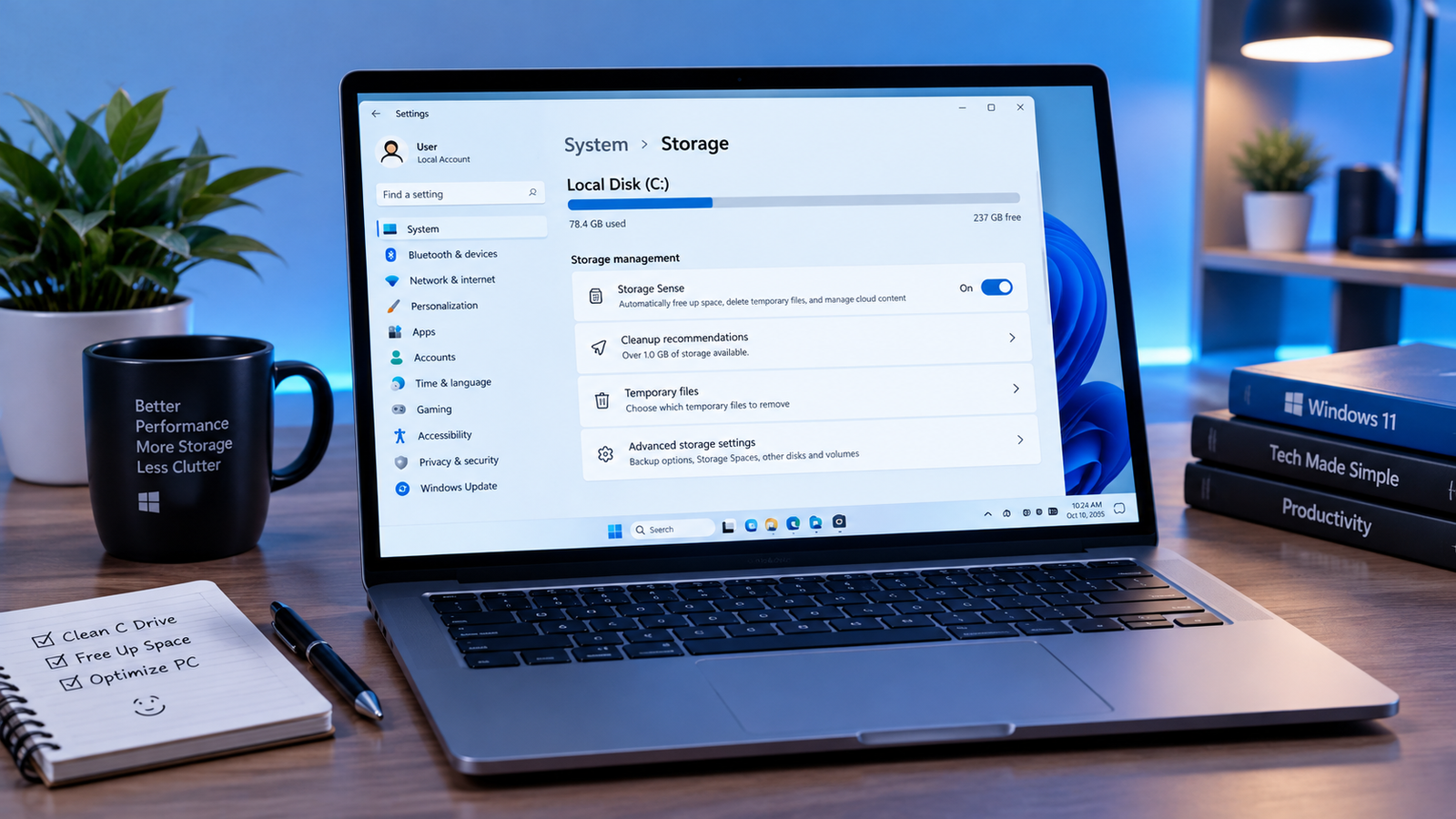
Windows 11 aggregates temporary files in one convenient dashboard, making it easy to see exactly what is consuming space.
-
Access Temporary Files: Go to Settings > System > Storage > Temporary files.
-
Scan the Drive: Windows will scan your drive and categorize temporary files (such as Windows Update Cleanup, Delivery Optimization Files, Thumbnail caches, and Temporary Internet files).
-
Review Selections: Check the boxes next to the categories you want to clear.
-
Safe Check: Note that checking the Downloads folder will delete personal files sitting in your default download location, so review that folder manually before selecting it.
-
Remove Files: Click Remove files at the top of the menu to start the cleanup process.
Clearing temporary junk is especially helpful for creators running heavy software pipelines covered in our roundup of best free open source tools for content creators, as rendering temp files can fill up storage rapidly.
3. Run the Classic Disk Cleanup Tool
The classic Disk Cleanup utility remains one of the safest and most thorough ways to clear old system restore data and legacy update logs.
-
Open Disk Cleanup: Press the Windows Key, type Disk Cleanup, and select the application.
-
Select Drive C: Choose your primary drive (C:) and click OK.
-
Clean Up System Files: Click the Clean up system files button near the bottom of the window. This re-scans the drive with administrator permissions.
-
Delete Windows Update Files: Look for Previous Windows installation(s) or Windows Update Cleanup. These folders alone can hold 10 GB to 20 GB of old installation data.
-
Execute Cleanup: Check the desired boxes and click OK to permanently remove the files.
4. Remove Unused Applications and Large Files
Installed games, media editing tools, and unused pre-installed applications often occupy huge chunks of C drive space.
-
Filter Applications: Go to Settings > Apps > Installed apps.
-
Sort by Size: Click the Sort by dropdown menu and select Size (Large to small).
-
Uninstall Unneeded Software: Click the three dots next to software you no longer use and select Uninstall.
-
Check Large User Files: Open File Explorer and navigate to your Videos, Documents, and Desktop folders. Move large video files or zip archives to an external hard drive or cloud storage.
5. Disable Hibernation Mode (Optional)
If you use an SSD and rarely put your PC into Hibernation mode, disabling this feature can instantly free up several gigabytes on your C drive.
Windows reserves space on your C drive equal to a portion of your installed RAM to support Hibernation (via the hiberfil.sys file).
-
Open Command Prompt: Press the Windows Key, type cmd, right-click Command Prompt, and select Run as administrator.
-
Type the Command: Type
powercfg /href offand press Enter. -
Result: This instantly deletes the hidden
hiberfil.sysfile and frees up space immediately. To re-enable it later, typepowercfg /href on.
Pairing system cleanup routines with proper digital security habits, such as those outlined in our passkeys vs passwords comparison and our guide on how to secure home wi-fi network from hackers, keeps your PC fast, organized, and secure.
Want More Insights to Grow Your Digital Presence & Daily Productivity?
Whether you need to fix your website’s technical performance or build a smarter, burnout-free work routine, NewsUpTo delivers practical guides to keep you ahead.






Leave feedback about this