
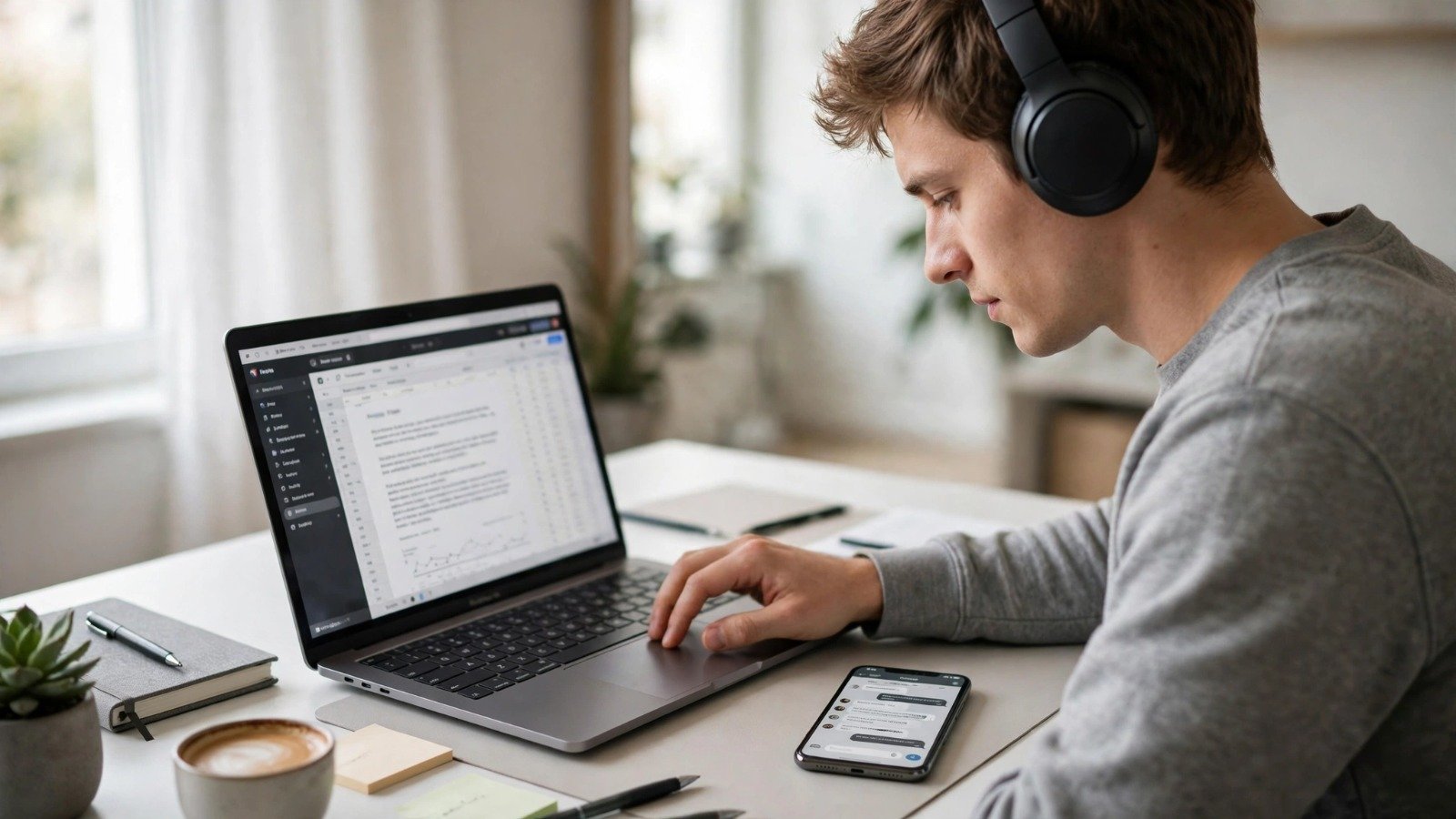
Juggling between your smartphone and laptop while wearing wireless headphones often leads to a frustrating routine of disconnecting and reconnecting Bluetooth settings. Whether you are listening to music on your computer and need to answer an incoming phone call, or switching between devices during a work day, doing this manually wastes valuable time.
Fortunately, modern wireless audio technology solves this issue completely. By using a feature known as Bluetooth Multipoint, you can maintain active connections with two source devices simultaneously.
Below is a complete, beginner-friendly blog post guide covering how Bluetooth multipoint works, how to set it up step by step, and how to troubleshoot common connection hurdles.
1. Understanding How Bluetooth Multipoint Works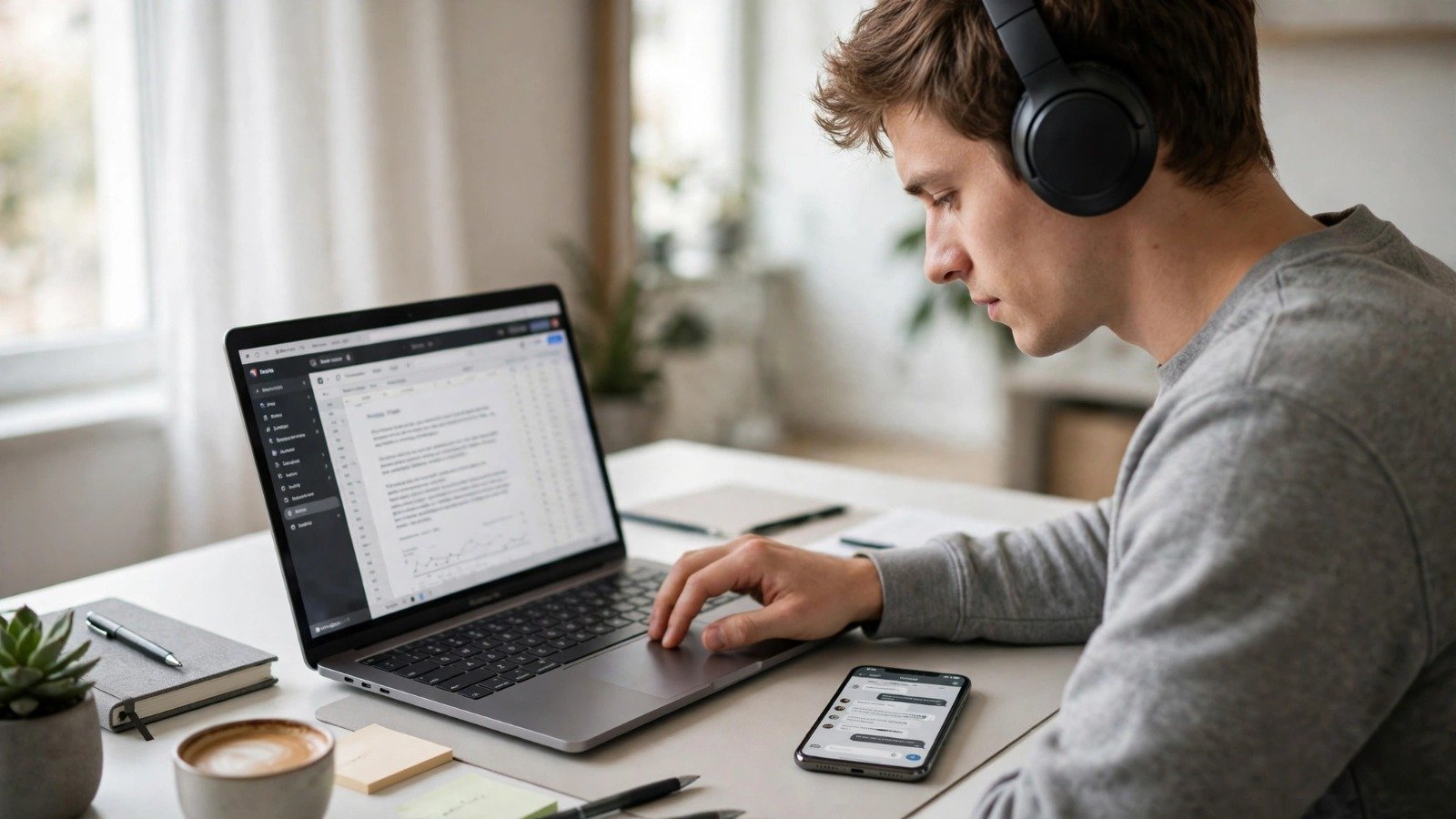
Standard Bluetooth technology connects your headphones to only a single audio source at any given time. Multipoint overcomes this limit by utilizing advanced profile management to bridge two active connections.
-
Single Active Audio Stream: Multipoint is designed for seamless switching rather than audio mixing. You cannot listen to music from your laptop and phone simultaneously. Instead, one device streams active media while both remain linked.
-
Automatic Call Priority: If you are watching a video on your computer and an incoming call rings on your phone, multipoint automatically pauses the computer media and switches your audio directly to the phone call.
-
Effortless Switching: To switch from listening to audio on your tablet to your computer, simply pause the media on your tablet and press play on your computer.
[ Device A (Laptop) ] ──┐
                         ├──> [ Bluetooth Headphones (Multipoint) ]
[ Device B (Phone) ]  ──┘
2. Step-by-Step Guide to Setting Up Multipoint
While specific menus vary across manufacturers like Sony, Bose, Anker Soundcore, and Jabra, the core setup process remains consistent.
| Setup Stage | Action Required | Result |
| Compatibility Check | Confirm model supports multipoint | Ensures hardware capability |
| First Pairing | Connect headphones to Device A | Establishes primary link |
| App Configuration | Enable dual-device toggle | Activates backend multipoint profile |
| Second Pairing | Re-enter pairing mode for Device B | Completes simultaneous dual connection |
3. Troubleshooting Common Multipoint Issues
Even when using compatible hardware, occasional connection quirks can happen. Use these simple steps to keep your dual-device setup running smoothly.
-
Audio Stuttering or Lag: If playback cuts out when switching between devices, ensure both operating systems are updated and that you are clear of heavy Wi-Fi router interference.
-
Second Device Fails to Pair: Some headphones require you to temporarily turn off Bluetooth on the first device before pairing the second device if multipoint was not enabled beforehand. Turn off Bluetooth on Device A, pair Device B, and then re-enable Bluetooth on Device A.
-
Codec Limitations: High-resolution audio codecs (such as LDAC or aptX Adaptive) may automatically switch off when multipoint is active, reverting your headphones to standard AAC or SBC audio to maintain stable dual links.
Want More Insights to Grow Your Digital Presence & Daily Productivity?
Whether you need to fix your website’s technical performance or build a smarter, burnout-free work routine, NewsUpTo delivers practical guides to keep you ahead.


Leave feedback about this