

Dealing with persistent callers, unwanted spam, or awkward personal contacts can be stressful. While the standard iOS block feature stops calls immediately, it usually sends the caller straight to voicemail after one ring. As a result, astute callers often realize they have been blocked.
Fortunately, Apple provides several subtle settings that allow you to quiet incoming calls without giving away that you are ignoring them. By leveraging built-in features, you can keep your peace of mind while avoiding uncomfortable social friction.
Below is a complete, step-by-step guide explaining how to block callers on iPhone without them knowing.
1. What Happens When You Block a Contact Directly?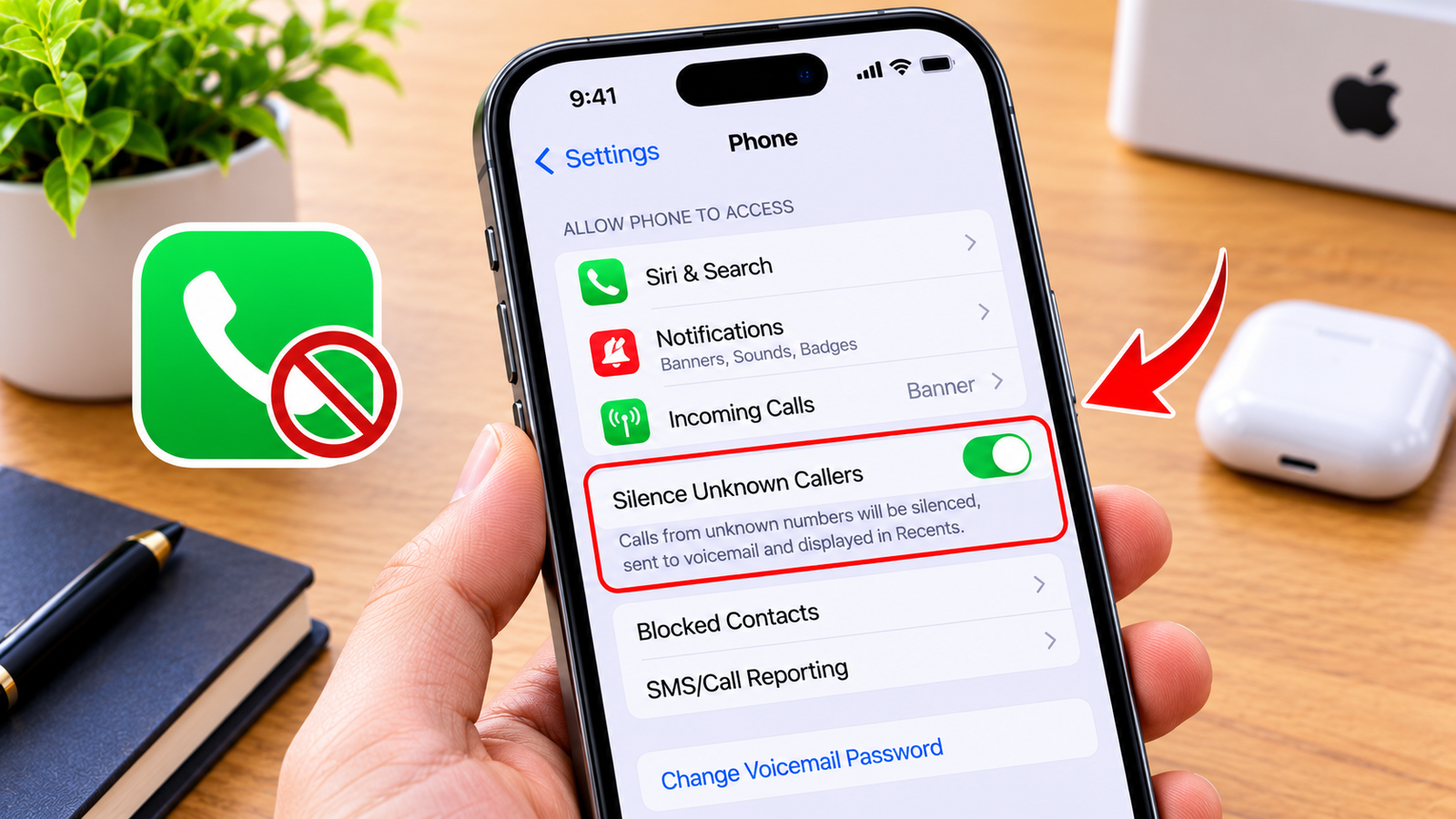
To understand stealthy alternatives, it helps to review what happens during a standard block. Whenever you use the default block option in the Phone app:
-
Ring Behavior: The call rings briefly once before diverting directly to your voicemail.
-
Text Messages: iMessages are delivered on the sender’s end, but you never receive them on your device.
-
Voicemail Storage: Callers can still leave a voicemail, but iOS stores it in a hidden “Blocked Messages” folder.
Because a single ring followed by an immediate voicemail transfer is a well-known sign of being blocked, using alternative iOS features is often a better choice.
2. Method 1: Use the “Silence Unknown Callers” Feature
If you receive constant calls from numbers not saved in your address book, iOS offers an automated silencing tool.
Step-by-Step Instructions:
-
First, open the Settings app on your iPhone.
-
Next, scroll down and tap Phone.
-
After that, tap Silence Unknown Callers.
-
Finally, toggle the switch to On.
Consequently, calls from unsaved numbers will go directly to voicemail without making your phone ring or vibrate. However, the caller hears normal ringtones, making it seem as if you were simply away from your device.
[ Open Settings ] ──> [ Tap Phone ] ──> [ Select Silence Unknown Callers ] ──> [ Enable Toggle ]
3. Method 2: Assign a Silent Ringtone and No Vibration
For contacts already in your address book, assigning a silent ringtone is a seamless way to ignore their calls without blocking them.
Step-by-Step Instructions:
-
To begin, open the Contacts app and select the contact you want to silence.
-
Then, tap Edit in the top-right corner.
-
Scroll down and tap Ringtone.
-
Select Silent (or download a silent audio track) and set Haptics to None.
-
Similarly, tap Text Tone and set it to None.
-
Finally, tap Done to save your changes.
When this contact calls, your phone will stay completely still and silent. Meanwhile, the call will ring normally on their end until it reaches your standard voicemail.
| Strategy | Caller Experience | Your Phone Experience | Stealth Rating |
| Standard Block | 1 ring, then instant voicemail | No notification received | Moderate (Caller may suspect) |
| Silence Unknowns | Normal full ringing to voicemail | Silent log in Recent Calls | High (Appears un-answered) |
| Silent Ringtone | Normal full ringing to voicemail | Completely quiet display | Highest (Completely natural) |
Additionally, keeping your digital footprint secure and ad-free complements daily device management, as highlighted in how-to-stop-pop-up-ads-on-android. Furthermore, organizing your daily schedules efficiently pairs nicely with personal planning strategies covered in how-to-make-a-zero-based-budget.
4. Method 3: Create a Custom Focus Mode for Specific Contacts
iOS Focus modes allow you to customize who can reach you during specific hours or activities.
Step-by-Step Instructions:
-
First, go to Settings and tap Focus.
-
Next, tap the + icon in the top-right corner to create a custom Focus mode.
-
Select Silence Notifications From.
-
Add the specific contacts you wish to mute.
-
Turn the Focus mode on whenever you want quiet time.
As a result, your phone will suppress all incoming call alerts from those chosen individuals while allowing everyone else to reach you normally.
Furthermore, maintaining healthy posture habits like simple-wrist-exercises-for-computer-users ensures comfortable phone handling during long work hours.
Want More Insights to Grow Your Digital Presence & Daily Productivity?
Whether you need to fix your website’s technical performance or build a smarter, burnout-free work routine, NewsUpTo delivers practical guides to keep you ahead.






Leave feedback about this