

Running artificial intelligence directly on your personal computer was once limited to software engineers with expensive data center GPUs. Today, open-weight language models and user-friendly software allow anyone with a standard modern computer to run AI models locally.
Running local AI means zero subscription fees, total data privacy, and full offline functionality. None of your prompts or files are uploaded to third-party servers, making it ideal for processing confidential work or sensitive personal documents.
Below is a complete, beginner-friendly guide on how to check your hardware, pick the right app, and start chatting with local AI models in under ten minutes.
1. Check Your PC Hardware Requirements
Local AI performance depends primarily on system memory. Language models load into memory, so the speed at which the model answers depends on whether it fits inside video RAM (VRAM) on your graphics card or regular system RAM.
-
Basic Level (CPU Only / Integrated Graphics): 8 GB to 16 GB system RAM. Runs small 1B to 3B parameter models at moderate speeds.
-
Intermediate Level (Dedicated Mid-Range GPU): 6 GB to 8 GB VRAM (e.g., NVIDIA RTX 3060 / 4060). Smoothly runs 7B to 8B models with fast token generation.
-
Advanced Level (High-End GPU): 12 GB to 24 GB VRAM or Apple Silicon Mac. Capable of running 14B to 32B parameter models and handling advanced coding tasks.
If you plan to use your computer for creative tasks, pairing local software with a best home office setup for software developers creates a balanced productivity workspace.
2. Choose the Right Local AI Software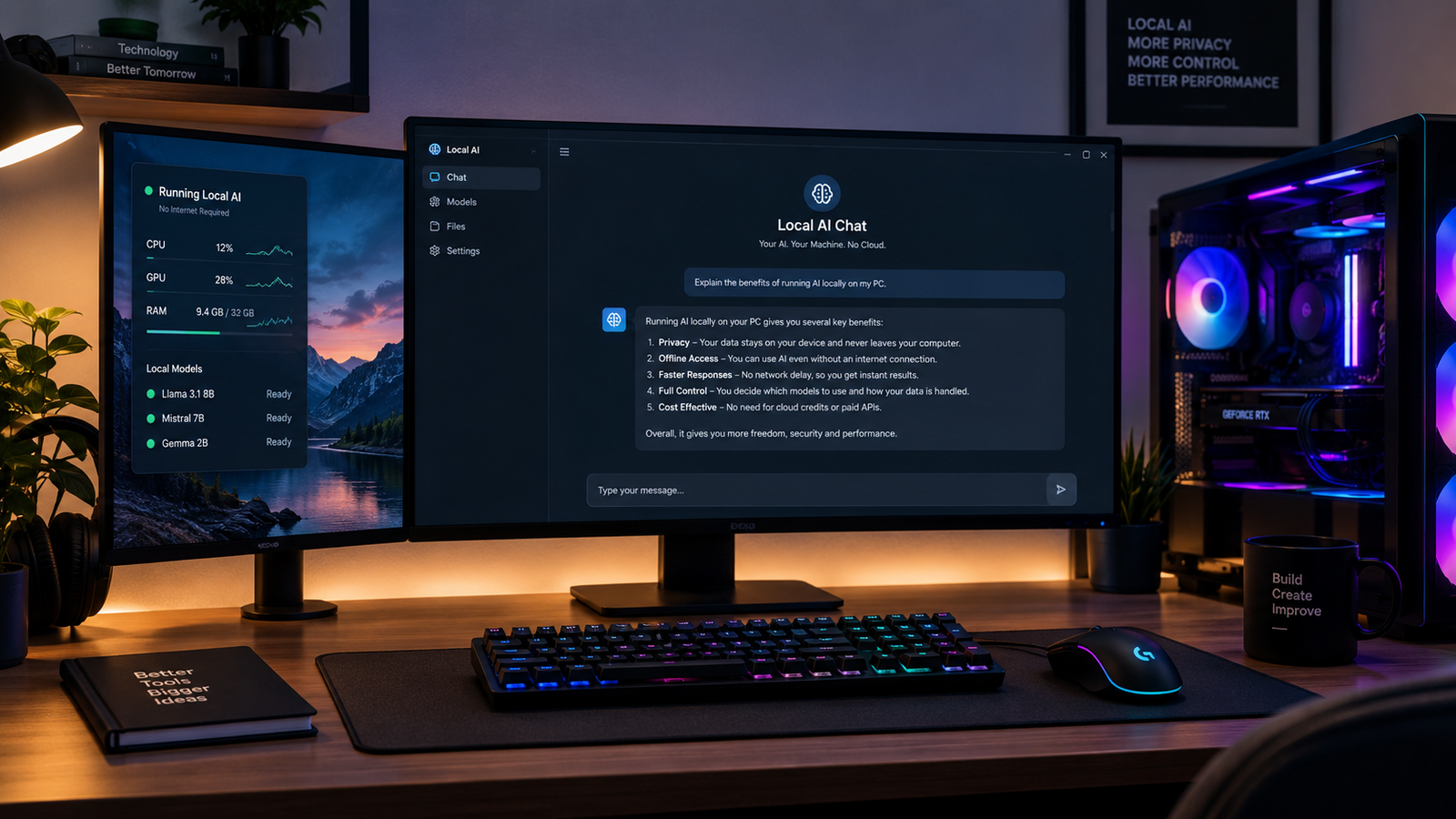
You do not need to write code to launch local AI models. Two primary tools make local AI accessible for different preference levels:
Method A: LM Studio (Easiest Graphical Interface)
LM Studio provides a clean desktop application that feels similar to familiar chat web applications.
-
Download: Visit the official LM Studio website and download the Windows or Mac installer.
-
Search Models: Click on the magnifying glass icon and search for popular open models like
Llama 3,Qwen 2.5, orGemma 2. -
Select Quantization: Choose a
Q4_K_M(4-bit quantized) file variant. Quantized models compress memory storage while preserving model intelligence. -
Load & Chat: Go to the chat screen, select your downloaded model from the top dropdown, and start typing prompts.
Method B: Ollama (Best for Developers & CLI Efficiency)
Ollama runs in the background as a lightweight engine, making it ideal for integration with other apps or terminal usage.
-
Install: Download and run the setup installer from the official Ollama site.
-
Open Terminal: Open Windows Command Prompt, PowerShell, or Terminal.
-
Run Command: Type
ollama run llama3.2and press Enter. -
Instant Download: The system downloads the model automatically and drops you straight into an interactive chat prompt inside your terminal window.
3. Select the Best Small Models for Beginners
When picking models from open repositories like Hugging Face or Ollama Library, choose lightweight variants designed specifically for local deployment:
-
Llama 3.2 (3B): Extremely fast, lightweight, and works well on laptops without dedicated graphics cards.
-
Qwen 2.5 (7B / 14B): Excellent for general reasoning, multilingual tasks, and basic code generation.
-
Gemma 2 (2B / 9B): Efficient lightweight model suite built by Google, offering high quality for small file sizes.
For users who also use their PC for gaming, applying tips on how to optimize windows 11 for gaming and performance helps free up background system RAM before loading large model files into memory.
4. Optimize Local AI Performance
If your model responds slowly or stutters during generation, try these hardware optimizations:
-
Enable GPU Offloading: In LM Studio settings, verify that GPU acceleration is enabled and layers are offloaded to VRAM instead of CPU system memory.
-
Reduce Context Length: Setting context limits to 4,024 or 8,192 tokens prevents models from running out of system memory during long conversations.
-
Close Memory-Heavy Apps: Web browsers with dozens of open tabs consume several gigabytes of RAM that your local model needs.
Building an offline toolbox using local AI alongside tools featured in our best free open source tools for content creators guide enables a fully self-reliant creative workflow without recurring software fees.



Leave feedback about this