

Your home Wi-Fi router is the gateway to your entire digital life. Every smartphone, laptop, smart TV, security camera, and tablet connected to your network relies on that single access point to transmit sensitive personal information.
Unsecured or poorly configured home Wi-Fi networks present an easy target for cybercriminals. Nearby hackers can intercept unencrypted network traffic, steal personal login credentials, bandwidth, or gain access to smart home devices.
Fortunately, securing your wireless network does not require an IT degree. Below is a straightforward step-by-step guide on how to secure your home Wi-Fi network from hackers using basic router adjustments.
1. Change the Default Router Administrator Login
When you purchase a Wi-Fi router or receive one from your Internet Service Provider (ISP), it comes with factory default admin credentials (often simple combinations like username: admin and password: admin or password).
-
Why it matters: Hackers maintain databases of default login credentials for every major router brand. If an attacker gains local access to your signal, default credentials allow them to take full control of your router settings within seconds.
-
How to fix it: Access your router’s admin interface via a web browser (usually typing
192.168.1.1or192.168.0.1into the address bar) or through your ISP’s mobile app. Update the admin username and create a long, unique password.
2. Update Your Wireless Network Name (SSID)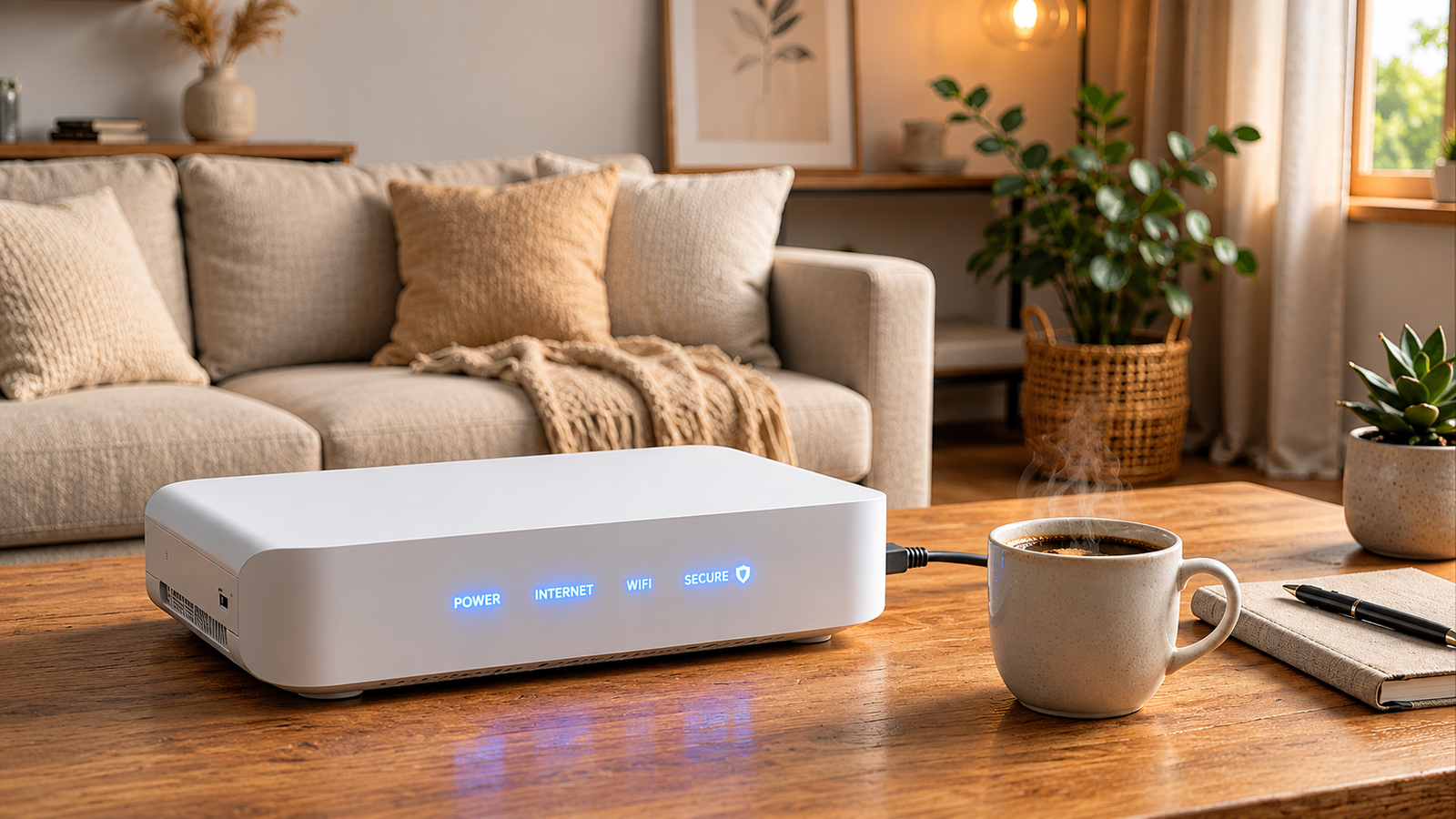
The Service Set Identifier (SSID) is the public name your router broadcasts to nearby devices searching for Wi-Fi.
-
Avoid Default Names: Factory network names (like Netgear54_5G or Linksys-Guest) reveal the exact make and model of your hardware, making it easier for attackers to target known security vulnerabilities associated with that model.
-
Keep It Anonymous: Rename your network to something unique that does not contain personal identifying information, such as your full name, apartment number, or street address.
3. Enable Strong Wi-Fi Encryption (WPA2 or WPA3)
Encryption scrambles the data traveling between your connected devices and your router, rendering it unreadable to anyone trying to eavesdrop on your wireless traffic.
Check your wireless security settings in your router dashboard and ensure you are using modern protocol standards:
-
WPA3: The current security standard providing the strongest protection against brute-force password cracking attempts.
-
WPA2-PSK (AES): If your older devices do not support WPA3, use WPA2 with AES encryption.
-
Avoid Outdated Protocols: Never select WEP or WPA (TKIP), as these legacy protocols contain severe security flaws that modern software can bypass easily.
Pairing strong wireless encryption with secure account practices across your accounts—such as those detailed in our passkeys vs passwords comparison guide—ensures robust multi-layered security across your hardware and software.
4. Create a Separate Guest Network for Smart Devices
Internet of Things (IoT) devices like smart bulbs, connected refrigerators, streaming sticks, and security cameras often receive fewer firmware security updates than laptops or smartphones, making them prime entry points for hackers.
-
Isolate Your Main Devices: Enable your router’s “Guest Network” feature.
-
Connect IoT to the Guest Network: Move all smart home accessories, smart TVs, and guest devices to the isolated guest network.
-
Keep Core Devices Private: Reserve your primary Wi-Fi network exclusively for personal laptops, smartphones, and devices containing sensitive personal data.
5. Keep Your Router Firmware Updated
Router manufacturers regularly release software updates (firmware) to patch security flaws and system bugs discovered after production.
-
Enable Automatic Updates: Log into your router dashboard and turn on automatic firmware updates if the option is available.
-
Check Manually: If your router lacks automatic updates, set a calendar reminder to check the manufacturer’s official support website every few months for downloadable security patches.
If you regularly use your workstation for heavy workloads like running local language models outlined in our how to run ai locally on pc tutorial, maintaining updated network hardware ensures seamless offline and online performance without background network vulnerabilities.
6. Turn Off Remote Management and WPS
Two convenience features built into many Wi-Fi routers introduce significant security risks if left enabled:
-
Disable Remote Management: This feature allows users to adjust router settings over the open internet. Unless you specifically require remote network administration, keep this disabled to block external login attempts.
-
Disable Wi-Fi Protected Setup (WPS): WPS allows devices to join the network via a push button or an 8-digit PIN. The 8-digit PIN method is vulnerable to automated cracking tools and should be turned off in your router settings.
7. Disable Plug-and-Play (UPnP) Features
Universal Plug and Play (UPnP) allows networked devices to discover each other and open port connections automatically without manual configuration.
While convenient for gaming consoles or media servers, malware on an infected smart device can exploit UPnP to open hidden firewall holes, allowing unauthorized external access to your local network. Disabling UPnP adds a critical extra barrier of firewall protection.
For users optimizing personal machines using tips from our guide on how to optimize windows 11 for gaming and performance, managing manual port forwarding rules instead of relying on UPnP preserves low latency while maintaining network safety.
Want More Insights to Grow Your Digital Presence & Daily Productivity?
Whether you need to fix your website’s technical performance or build a smarter, burnout-free work routine, NewsUpTo delivers practical guides to keep you ahead.




Leave feedback about this