
Over time, even a fast Android smartphone can start feeling sluggish. App launch delays, stuttering animations, and unresponsive screens usually happen as internal storage fills up and background processes pile up.
Fortunately, you do not need to purchase a brand-new device to get smooth performance back. A few simple maintenance adjustments can revitalize your phone in under ten minutes.
Below is a complete, beginner-friendly guide covering how to speed up a slow Android phone easily, featuring built-in optimization settings and smart storage habits.
1. Simple Quick Fixes for Immediate Speed Improvements
Before changing deep system settings, start with basic maintenance tasks that immediately free up system memory (RAM).
-
Restart Your Phone: Turning your phone off and back on clears temporary system RAM and closes stuck background processes.
-
Uninstall Unused Apps: Remove games and apps you no longer use. Apps running background sync draw memory and battery power constantly.
-
Free Up Internal Storage: Keep at least 15 percent of your internal storage space free. Android devices slow down significantly when storage is nearly full.
-
Clear Home Screen Clutter: Remove excessive animated live wallpapers and active home screen widgets that draw processing power.
[ Restart Phone ] ──> [ Delete Unused Apps ] ──> [ Free 15% Storage ] ──> [ Clear Home Screen ]
2. Step-by-Step Settings Optimization Guide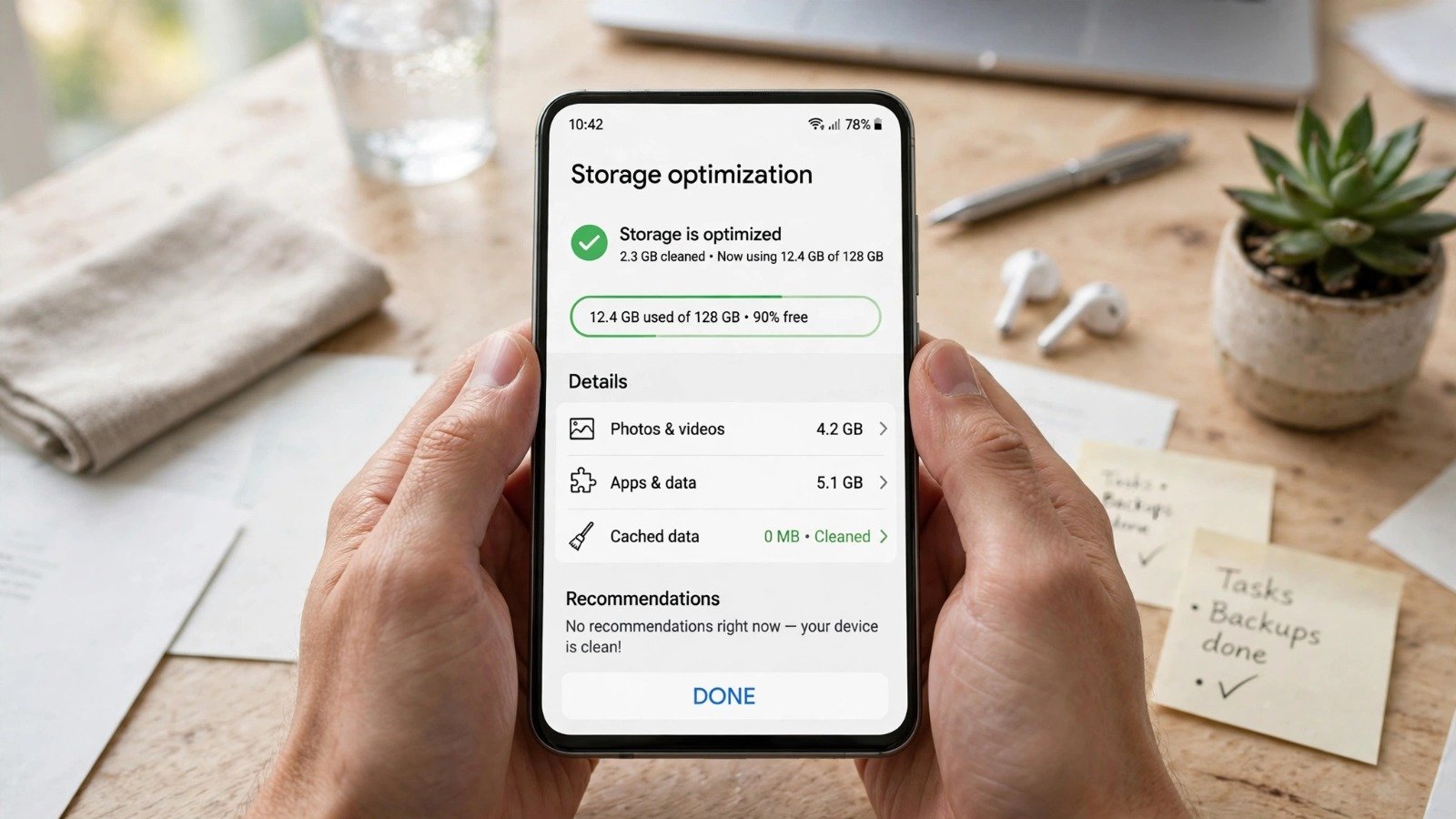
Adjusting a few core system settings helps your Android operating system prioritize speed and responsiveness.
Step 1: Clear Cached App Data
Go to Settings > Storage > Apps, select resource-heavy apps (such as social media or browser apps), and tap Clear Cache. This removes temporary junk files without deleting your personal logins or account data.
Step 2: Turn Off Background Data Sync
Navigate to Settings > Battery & Device Care (or Apps) and restrict background activity for apps that do not require real-time updates.
Step 3: Speed Up System Animations
Enable Developer Options by tapping your Build Number seven times under Settings > About Phone. Then, open Developer Options and change Window Animation Scale, Transition Animation Scale, and Animator Duration Scale from 1x down to 0.5x.
| Optimization Step | Expected Result | Effort Level |
| Restarting Device | Clears temporary RAM and stuck tasks | Instant (1 minute) |
| Clearing App Cache | Frees up storage space and speeds up app load | Low (3 minutes) |
| Reducing Animations | Makes app switching and menus feel instant | Medium (2 minutes) |
Additionally, keeping your phone media backed up securely using how-to-backup-phone-photos-to-cloud-for-beginners lets you safely delete local copies to free up storage. Furthermore, managing app memory issues connects directly with tips from how-to-clear-app-cache-on-android-and-iphone.
3. Smart Habits to Keep Your Android Phone Fast
Adopting preventive habits stops your phone from slowing down again in the future.
Rule 1: Keep Your Android OS Updated
Regular system updates include performance optimizations, bug fixes, and security patches that keep apps running smoothly.
Rule 2: Avoid Third-Party “Cleaner” Apps
Do not download third-party RAM booster or task killer apps from the Play Store. These apps often run continuous background ads that actually slow your device down further. Use your phone’s built-in Device Care tool instead.
Rule 3: Use Lite Versions of Heavy Apps
If you use an older Android phone with limited RAM, install lightweight app versions (such as Facebook Lite or Messenger Lite) to conserve resources.
Furthermore, protecting your home network speeds while downloading system updates pairs naturally with advice from how-to-check-who-is-on-your-wifi-network.
Want More Insights to Grow Your Digital Presence & Daily Productivity?
Whether you need to fix your website’s technical performance or build a smarter, burnout-free work routine, NewsUpTo delivers practical guides to keep you ahead.




Leave feedback about this