

Rising electricity costs and opaque monthly utility bills make real-time power tracking an essential part of any modern smart home. While commercial energy monitors exist, many rely on proprietary cloud servers, require ongoing monthly subscriptions, or restrict access to your raw usage data.
Building a custom, self-hosted energy monitor using an ESP32 microcontroller and Home Assistant puts you in complete control. Using open-source firmware like ESPHome, you can track whole-home kilowatt-hour (kWh) consumption, measure real-time wattage spikes, and integrate raw metrics directly into Home Assistant’s native Energy Dashboard all running 100% locally on your internal network
1. Choosing Your Sensor Hardware: CT Clamp vs. PZEM-004T
Before gathering components, decide which sensor module best fits your electrical setup and technical skill level.
Sensor Options Compared
| Feature | Non-Invasive CT Clamp (SCT-013) | PZEM-004T Power Meter Module |
| Measuring Mechanism | Clamps around live wire via magnetic induction. | Split-core CT + direct AC voltage reference taps. |
| Mains Contact | Zero direct contact. 100% non-invasive safety. | High-voltage AC connection required for voltage/power factor sensing. |
| Data Measured | Current (Amps) and estimated Power (Watts). | Voltage (V), Current (A), Active Power (W), Power Factor (PF), and Total Energy (kWh). |
| Measurement Accuracy | Good ($\sim 2\%\text{–}5\%$) assuming fixed estimated voltage. | Excellent ($\sim 0.5\%$) with real-time AC voltage sampling. |
Note: For absolute beginners, a non-invasive split-core CT clamp (SCT-013) or a split-core PZEM-004T eliminates the need to cut or strip high-voltage wiring.
2. Bill of Materials (BOM)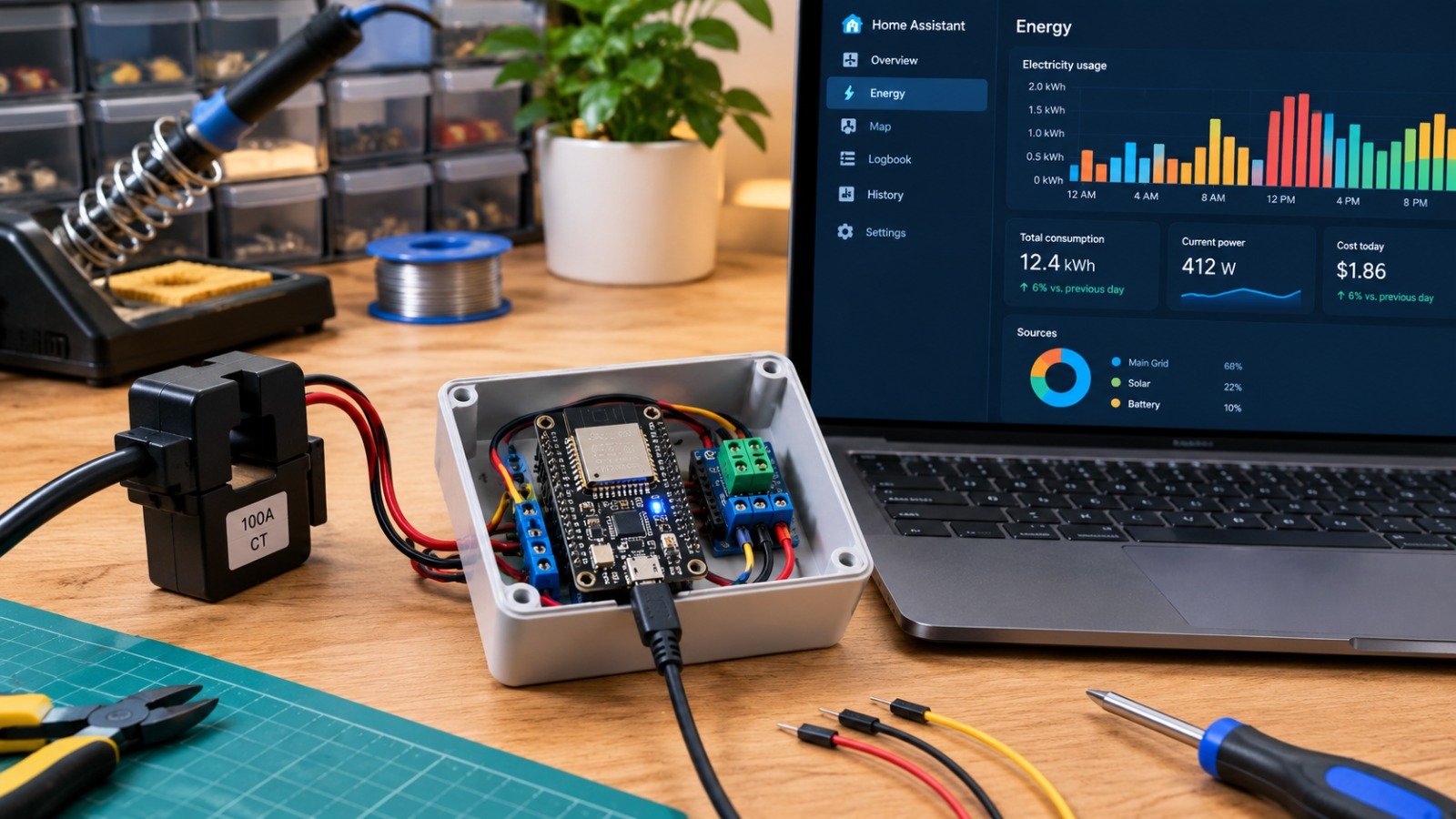
To build a whole-home single-phase energy monitor, gather the following low-cost components:
-
ESP32 Development Board: NodeMCU ESP32 or ESP32-S3 ($4 to $6).
-
Power Meter Module: PZEM-004T V3.0 with a 100A split-core CT transformer ($8 to $12).
-
AC-to-DC Power Supply: HLK-PM01 5V step-down module or a standard 5V micro-USB wall adapter ($3).
-
Junction Enclosure: Flame-retardant 3D-printed or plastic electrical enclosure ($4).
-
Wiring: Jumper wires, 18 AWG hookup wire, and an inline 1A fuse for safety.
3. Wiring and Hardware Setup
Connecting the PZEM-004T to the ESP32
The PZEM-004T communicates with the ESP32 using a hardware UART serial connection:
-
Connect PZEM VCC to ESP32 5V and PZEM GND to ESP32 GND.
-
Connect PZEM TX to ESP32 GPIO16 (RX2).
-
Connect PZEM RX to ESP32 GPIO17 (TX2).
-
Clip the split-core CT transformer clamp around the main incoming live (phase) cable. Never clip the transformer around both Live and Neutral together, as their magnetic fields will cancel each other out.
4. Configuring ESPHome Firmware
ESPHome allows you to generate and flash custom C++ firmware onto your ESP32 using a simple YAML configuration file.
Step 1: Create a New Device in ESPHome
In your Home Assistant dashboard, navigate to ESPHome > Add Device, name your board energy monitor and select ESP32.
Step 2: Add the Sensor YAML Configuration
Edit the device configuration and paste the following snippet:
Click Install, connect your ESP32 to your computer via USB, and allow ESPHome to compile and flash the firmware directly through your web browser.
5. Integrating with Home Assistant’s Energy Dashboard
Once flashed, the ESP32 connects to your local Wi-Fi and automatically appears in Home Assistant.
-
Go to Settings > Devices & Services in Home Assistant.
-
Click Configure on the newly discovered energy monitor ESPHome notification.
-
Navigate to Settings > Energy.
-
Under Grid Consumption, click Add Consumption and select Enter your local electric utility rate per kWh to enable real-time cost calculation graphs automatically.
To expand your home’s local control architecture, review our complete guide to building an affordable smart home ecosystem. Shifting all your sensors away from cloud servers builds directly on strategies from our tutorial to migrate your smart home from cloud to Home Assistant. Furthermore, keeping your local IoT devices isolated on a dedicated Wi-Fi network aligns with core everyday online privacy and data protection tips.
Want More Insights to Grow Your Digital Presence & Daily Productivity?
Whether you need to fix your website’s technical performance or build a smarter, burnout-free work routine, NewsUp To delivers practical guides to keep you ahead.



Leave feedback about this