

Modern smartphones pack high-resolution displays, fast multi-core processors, and demanding operating systems. Powering these handheld computers requires lithium-ion (Li-ion) or lithium-polymer batteries, which naturally undergo chemical degradation every time you charge and discharge them.
Over time, this chemical aging reduces the maximum energy capacity your battery can hold, causing rapid battery drain or unexpected shutdowns. While all rechargeable batteries have a finite lifespan, adopting healthy charging habits and tweaking key device settings can significantly slow down degradation and keep your phone running like new for years.
Below is a practical, step-by-step guide on how to extend smartphone battery lifespan using everyday maintenance habits..
1. Maintain the 20% to 80% Golden Charge Zone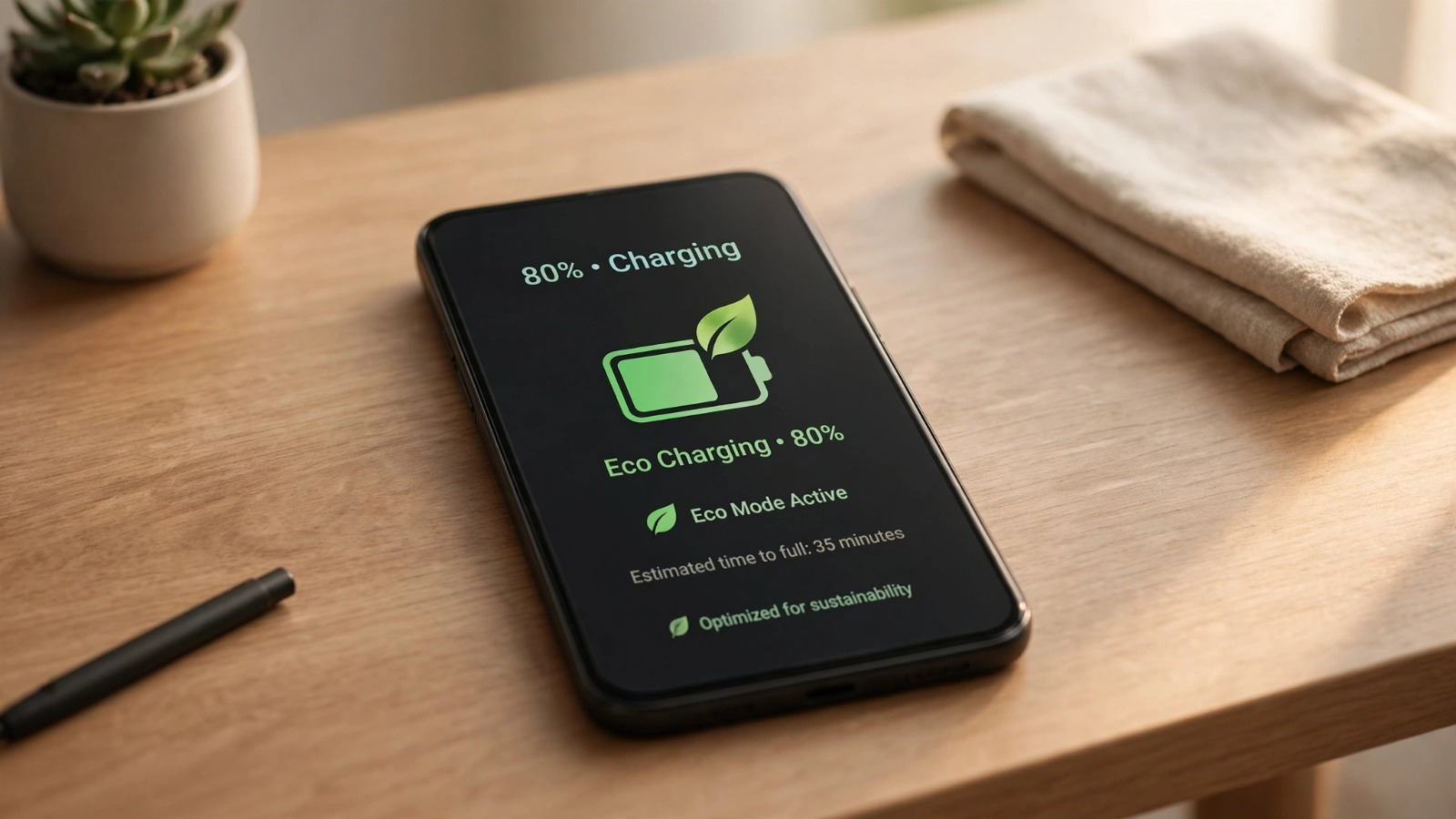
Lithium-ion batteries experience the highest stress when they are completely empty (0%) or fully charged (100%). Charging your device to maximum capacity causes high voltage stress that accelerates wear on internal chemical components.
-
Avoid Depleting to 0%: Never let your battery drain completely before plugging in. Deep discharges degrade lithium cells far quicker than shallow, frequent top-ups.
-
Cap Charges at 80%: Whenever practical, unplug your phone once it reaches roughly 80%.
-
Enable Charge Limits: Both Android and iOS include native settings to cap charging automatically at 80% or 85% to preserve long-term battery health.
2. Protect Your Phone from Heat Extreme
Heat is by far the biggest enemy of battery chemistry. High temperatures permanently destroy a battery’s internal storage structure, drastically reducing its maximum capacity.
-
Avoid Direct Sunlight: Do not leave your phone on a car dashboard or directly under sunlight on warm days.
-
Remove Heavy Phone Cases While Charging: Thick rubber or leather cases trap heat generated during high-speed charging. If your phone feels hot to the touch while plugged in, pop off the case.
-
Do Not Game While Fast-Charging: Gaming or rendering video while fast-charging combines processor heat with charging heat, exposing the battery to severe thermal stress.
3. Enable Optimized and Adaptive Charging Features
Modern smartphones feature intelligent charging routines designed to protect battery health during overnight charge cycles.
-
iPhone (Optimized Battery Charging): Go to Settings > Battery > Battery Health & Charging and toggle Optimized Battery Charging on. Your iPhone learns your daily routine and delays charging past 80% until right before you wake up.
-
Android (Adaptive Charging): Go to Settings > Battery > Adaptive Preferences and enable Adaptive Charging or Protect Battery. This dynamically manages power delivery to minimize high-voltage exposure while you sleep.
4. Use Certified Charging Hardware
Using low-quality, uncertified wall bricks or cables can feed unstable voltage into your phone, increasing ambient heat and damaging internal charging chips.
-
Choose Reputable Brands: Stick with the original manufacturer charger or certified third-party brands that support official USB Power Delivery (USB-PD) standards.
-
Be Mindful of Ultra-Fast Chargers: While 65W or 100W hyper-fast chargers offer convenience, they generate significantly more heat than moderate 20W to 30W chargers. Use standard charging rates overnight when speed is unnecessary.
Regular system maintenance isn’t limited to hardware; keeping software drives clean using principles from how to clean up c drive in windows 11 safely ensures your primary desktop workspace stays equally fast and efficient.
5. Adjust Display and App Background Refresh Settings
Reducing daily energy consumption decreases total charge cycles over time, directly expanding your battery’s operational lifespan.
-
Lower Screen Brightness: The display is your phone’s largest power consumer. Enable Auto-Brightness or keep manual levels moderate.
-
Switch to Dark Mode: On phones with OLED or AMOLED screens, dark mode turns off pixels on black backgrounds completely, saving substantial power.
-
Restrict Background Refresh: Prevent unnecessary social media and shopping apps from constantly syncing data when inactive. Navigate to Settings > Apps to disable background refresh for non-essential software.
Protecting your mobile device’s physical hardware goes hand-in-hand with account safety; consider upgrading your login protocols by checking our passkeys vs passwords comparison and verifying router settings with how to secure home wi-fi network from hackers.
Want More Insights to Grow Your Digital Presence & Daily Productivity?
Whether you need to fix your website’s technical performance or build a smarter, burnout-free work routine, NewsUpTo delivers practical guides to keep you ahead.






Leave feedback about this