
Sharing your home or office Wi-Fi network with guests usually involves reading out a long, complicated string of numbers and symbols. Misspelling even one letter leads to frustrating reconnection attempts and wasted time.
Fortunately, modern smartphones eliminate this hassle entirely. Both Android and iOS operating systems include built-in features that let you share your Wi-Fi network instantly using a scanned QR code.
Below is a complete, beginner-friendly guide covering how to share Wi-Fi password via QR code on Android and iPhone using native tools.
1. How to Share Wi-Fi Password via QR Code on Android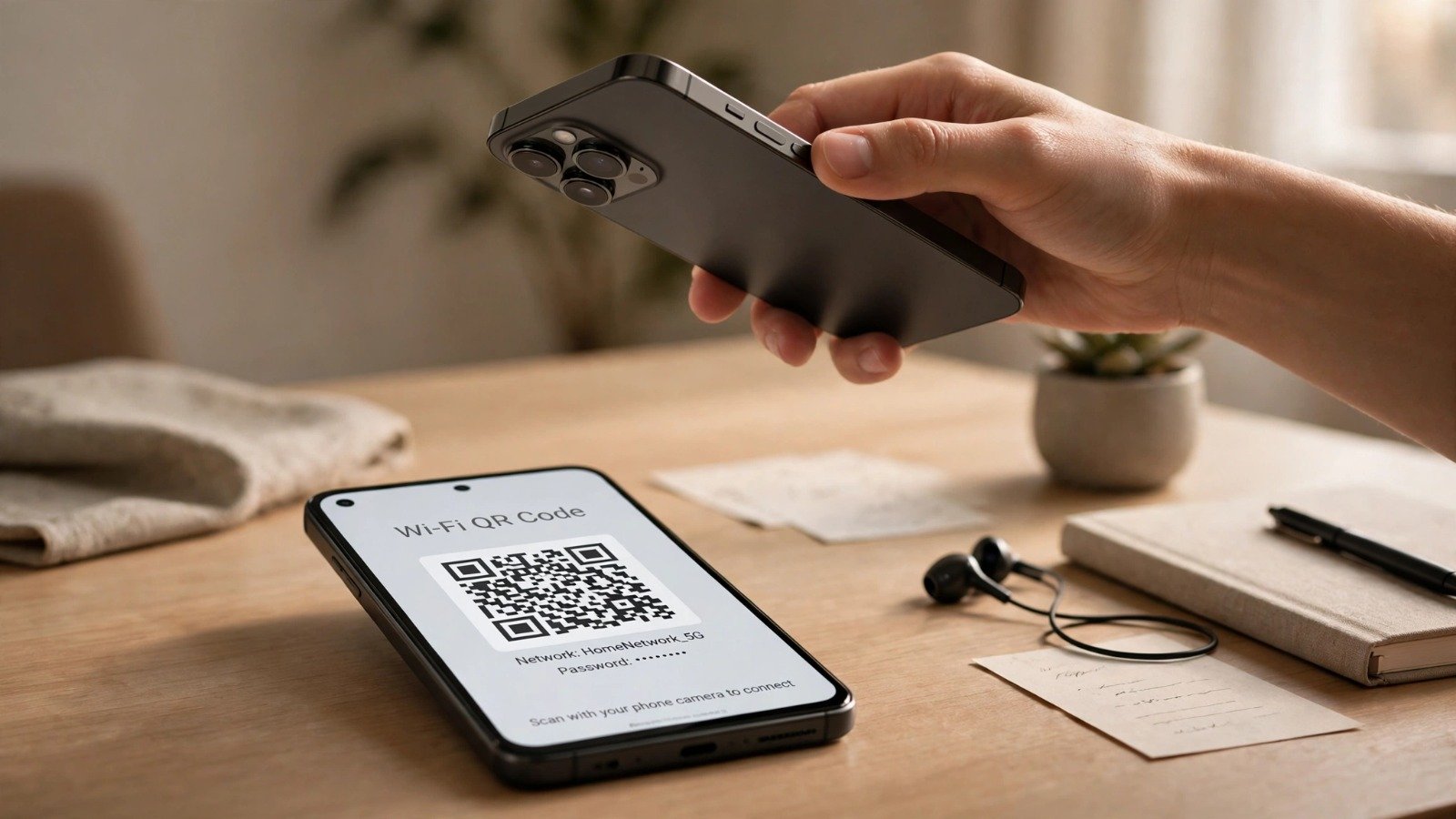
Android devices have featured direct Wi-Fi QR code generation since Android 10, making network sharing simple and fast.
-
Open Network Settings: Go to Settings on your Android phone and tap Network & internet (or Connections).
-
Select Your Active Wi-Fi: Tap Wi-Fi and select the network you are currently connected to.
-
Tap the Share Button: Tap the Share button (often displayed with a QR code icon). Verify your identity using your pin or fingerprint.
-
Display or Print the Code: A clear QR code will appear on your screen. Your guest can scan this code directly using their phone camera to connect instantly.
[ Open Settings ] ──> [ Select Connections / Wi-Fi ] ──> [ Tap Share Icon ] ──> [ Display QR Code ]
2. How to Share Wi-Fi via QR Code on iPhone
While iPhones automatically prompt you to share passwords with nearby Apple contacts, creating a physical QR code is ideal when sharing with Android guests or printing a guest pass.
Method 1: Using the Native Apple Shortcuts App
Open the Shortcuts app pre-installed on iOS, tap the Gallery tab, and search for “QR Your Wi-Fi”. Add the shortcut, type your Wi-Fi network name and password once, and tap run. Your iPhone will generate a custom QR code that you can save to your Photos gallery.
Method 2: The Automatic iOS Nearby Share Pop-Up
If your guest uses an iPhone or iPad, simply ensure both devices have Wi-Fi and Bluetooth turned on. When your guest selects your Wi-Fi network on their device, a pop-up prompt reading “Share Your Wi-Fi?” will automatically appear on your screen. Tap Share Password to connect them instantly.
| Platform / Method | Supported Guests | Requires Setup | Best For |
| Android Built-in Share | Android & iPhone guests | Zero setup | Instant screen scanning |
| iOS Shortcuts QR Code | Android & iPhone guests | 1-minute initial setup | Reusable image or printed guest card |
| iOS Nearby Auto-Share | iPhone & iPad guests only | Zero setup | Quick Apple-to-Apple sharing |
Additionally, keeping your wireless network organized pairs smoothly with tips from how-to-scan-qr-codes-with-android-and-iphone. Furthermore, maintaining your mobile device performance connects nicely with guides like how-to-clear-whatsapp-storage-on-android-and-iphone.
3. Security Best Practices for Wi-Fi Sharing
Sharing your Wi-Fi via QR code is convenient, but maintaining network security remains essential.
Rule 1: Use a Guest Network for Visitors
If your router supports dual networks, generate your QR code for a dedicated Guest Wi-Fi network. This isolates visitor devices from your primary home computers and smart devices.
Rule 2: Keep Your Primary Password Secure
Even though scanning a QR code hides the raw text password during scanning on some devices, anyone with access to the code can share it. Avoid posting primary network QR codes in public view.
Rule 3: Rotate Passwords Periodically
If you host events frequently, update your guest Wi-Fi password and regenerate your QR code every few months to keep old devices off your network.
Furthermore, keeping your online presence secure across all personal devices pairs naturally with advice from how-to-check-if-your-email-was-breached-online.
Want More Insights to Grow Your Digital Presence & Daily Productivity?
Whether you need to fix your website’s technical performance or build a smarter, burnout-free work routine, NewsUpTo delivers practical guides to keep you ahead.




Leave feedback about this