
Spending hours in front of laptops, smartphones, tablets, and monitors has become a routine part of modern life. However, prolonged screen exposure often leads to uncomfortable symptoms like dry eyes, headaches, blurred vision, and general visual fatigue. This condition is commonly known as digital eye strain or computer vision syndrome.
Digital eye strain occurs because human eyes are not naturally designed to focus on illuminated digital screens at a fixed distance for extended periods without rest. Fortunately, simple changes to your workspace setup and screen habits can bring fast, noticeable relief.
Below is a practical guide explaining how to stop digital eye strain using simple, daily habits.
1. Follow the 20-20-20 Rule
The 20-20-20 rule is one of the most widely recommended techniques for relaxing the eye muscles during screen work.
-
How It Works: Every 20 minutes spent looking at a screen, pause and stare at an object at least 20 feet away for at least 20 seconds.
-
Why It Helps: Focusing on distant objects allows the ciliary muscles inside your eyes to relax completely, interrupting continuous focus fatigue.
-
Set a Soft Reminder: Use a desktop timer app or gentle alarm to remind yourself to take visual breaks throughout your workday.
2. Optimize Workspace Lighting and Eliminate Glare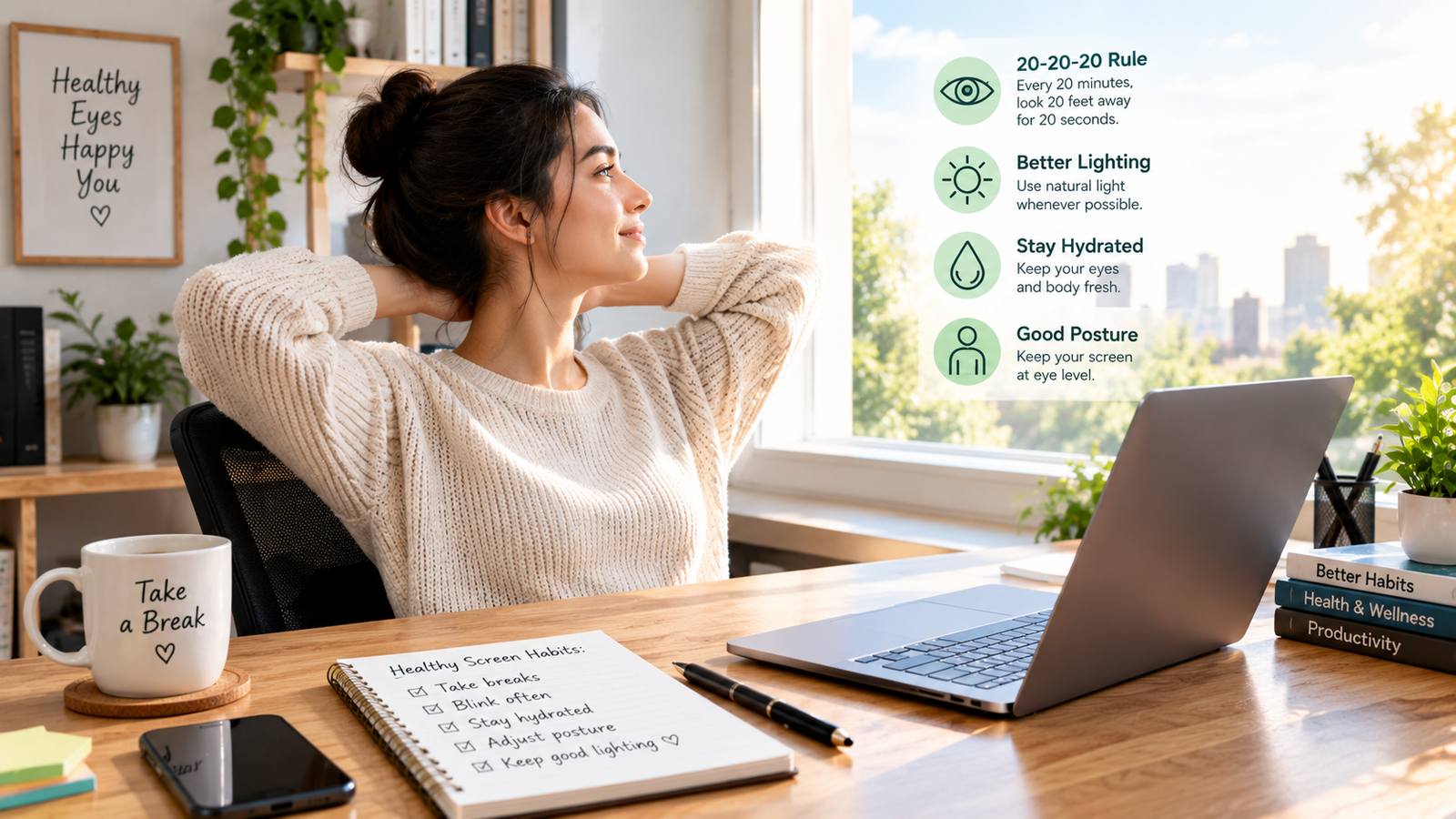
Harsh room lighting or high-contrast glare forces your eyes to work significantly harder to view screen text clearly.
-
Position Screens Away from Windows: Place your monitor perpendicular to windows rather than directly in front of or behind them to avoid intense light reflection.
-
Balance Ambient Light: Avoid working in a completely dark room with a brightly glowing display. Ensure ambient room lighting is soft and evenly distributed.
-
Use Anti-Glare Filters: If glare remains an issue, attach a matte anti-Glare screen filter to your monitor or laptop display.
3. Adjust Display Settings for Visual Comfort
Fine-tuning your device display settings reduces harsh glare and improves readability instantly.
-
Match Screen Brightness to Room Light: Adjust display brightness so it blends naturally with your surrounding environment. If your screen glows like a light bulb in a dark room, it is too bright.
-
Increase Text Size and Contrast: Enlarge font sizes in your browser and text documents to avoid leaning forward or squinting.
-
Enable Night Mode or Warm Color Filters: Activate built-in display features (such as Night Shift on iOS/macOS or Night Light on Windows/Android) during evening hours to shift screen colors toward warmer tones.
Adjusting your phone’s screen settings also helps preserve device components, as covered in simple ways to extend smartphone battery lifespan.
4. Practice Good Desk Ergonomics and Blink Consciously
Physical posture and blinking habits play a crucial role in preventing eye dryness and muscle tension.
| Ergonomic Factor | Recommended Adjustment | Benefit |
| Screen Distance | 20 to 28 inches (arm’s length) from your eyes | Reduces focus strain on eye muscles |
| Screen Height | Top of screen at or slightly below eye level | Encourages a natural, comfortable downward gaze |
| Blinking Frequency | Consciously blink every few seconds | Keeps eyes naturally lubricated |
People blink roughly 50% less often when looking at digital screens, leading to rapid tear evaporation and dry eye irritation. Making a conscious effort to blink fully helps restore natural eye moisture.
Combining proper monitor height with supportive desk habits also helps prevent upper body pain, as detailed in our guide on how to fix tech neck posture at desk. Maintaining steady energy with healthy anti inflammatory snacks for work further supports focus throughout long work sessions.
5. Consider Artificial Tears or Computer Eyewear
If environmental adjustments do not completely resolve eye dryness, consider simple over-the-counter support options:
-
Lubricating Eye Drops: Preservative-free artificial tears help moisten dry eyes during long research or writing sessions.
-
Computer Glasses: Prescription or non-prescription computer glasses with custom focal lengths can reduce focus strain if you work on multiple high-resolution monitors all day.
Want More Insights to Grow Your Digital Presence & Daily Productivity?
Whether you need to fix your website’s technical performance or build a smarter, burnout-free work routine, NewsUpTo delivers practical guides to keep you ahead.




Leave feedback about this