
Buffering videos, dropped video calls, and slow download speeds can quickly ruin your internet experience. Fortunately, slow home internet is often caused by simple setup issues rather than a poor connection from your internet service provider.
By making a few quick adjustments to your home network, you can significantly improve your signal strength and connection speeds.
Below is a step-by-step guide explaining how to make home wifi faster simple steps, complete with placement tips, setting adjustments, and maintenance habits.
1. Optimize Your Router Placement
The physical location of your wireless router plays a massive role in signal quality. Walls, metal appliances, and furniture can block wireless signals, creating dead zones in your home.
Steps for Ideal Placement:
-
Position Centrally: Place your router in the middle of your home so signals spread evenly across all rooms.
-
Elevate the Router: Keep your router off the floor. Place it on a high shelf or desk to help signals travel downward and outward.
-
Avoid Physical Obstructions: Keep the device away from thick concrete walls, large mirrors, and metal cabinets.
-
Keep Away from Interference: Position the router away from microwaves, cordless phones, and Bluetooth speakers, as these devices run on conflicting frequencies.
[ Central Room Position ] ──> [ High Shelf Location ] ──> [ Clear Physical Path ] ──> [ Stronger Signal ]
2. Choose the Right Wi-Fi Frequency Band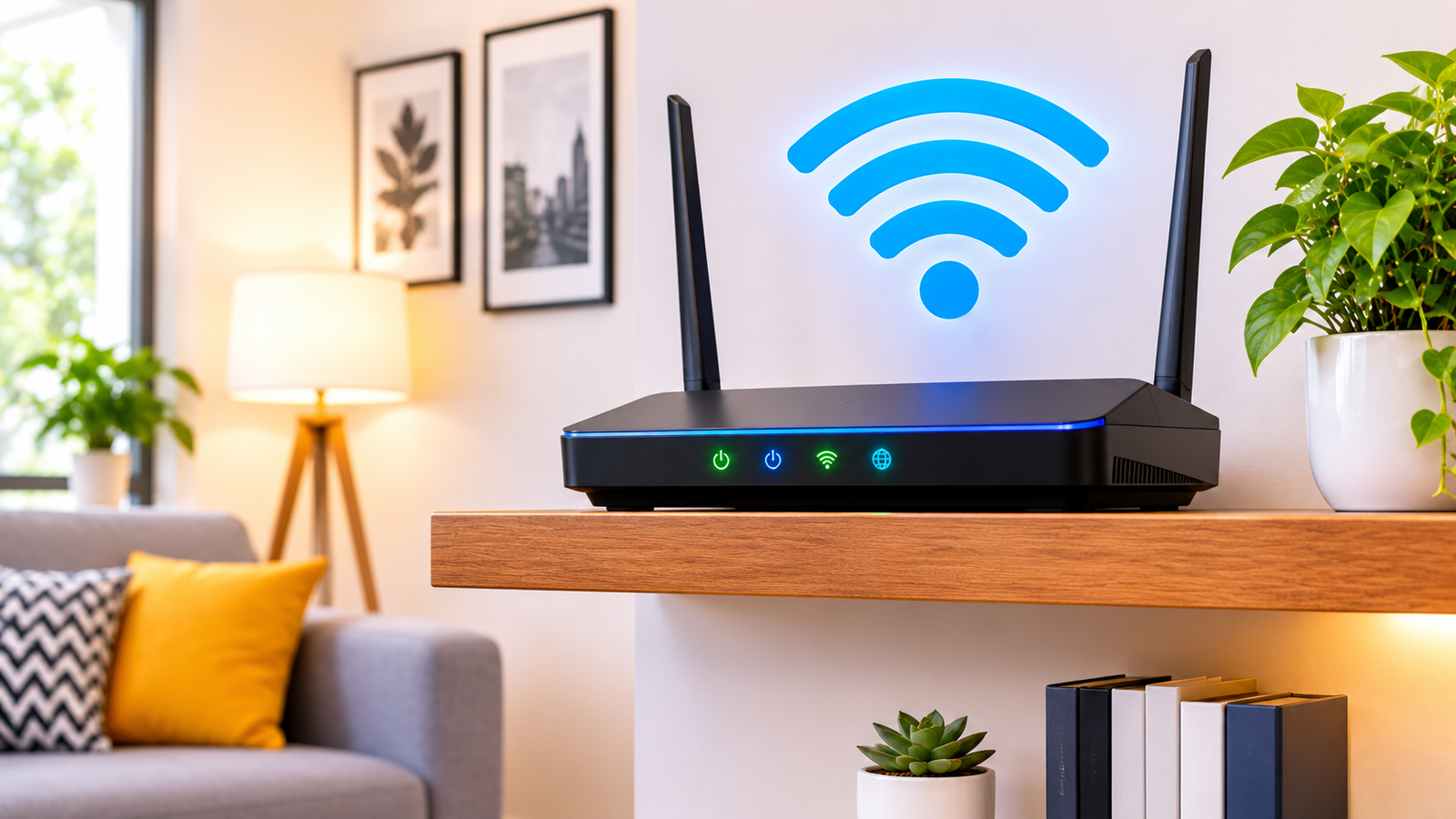
Most modern routers offer dual-band technology, broadcasting two separate network signals: 2.4 GHz and 5 GHz. Understanding which one to use makes a huge difference in speed.
-
Use 5 GHz for High Speeds: The 5 GHz band provides significantly faster data speeds and lower latency. Connect your smart TV, gaming console, and work laptop to this network when you are close to the router.
-
Use 2.4 GHz for Distance: The 2.4 GHz band covers longer distances and penetrates walls better. Use this network for smart home sensors or devices located far away.
| Wi-Fi Band | Top Speed Potential | Coverage Distance | Best Used For |
| 2.4 GHz | Moderate | Long range | Smart home gear, distant rooms |
| 5 GHz | Ultra-fast | Short to medium range | HD streaming, gaming, video calls |
Additionally, organizing your digital environment by removing unnecessary background app clutter helps maintain optimal device performance, as detailed in how-to-stop-pop-up-ads-on-android.
3. Practical Steps to Boost Connection Speed
Implementing quick maintenance tasks helps keep your network running efficiently:
Step 1: Reboot Your Router Regularly
-
First, unplug your router from the power outlet.
-
Wait 30 seconds to let the device clear its internal memory cache.
-
Then, plug the power cable back in and wait for all lights to turn green.
Step 2: Disconnect Unused Devices
-
Next, check your connected device list inside your router app.
-
Disconnect old smartphones, tablets, or smart home gear that you rarely use.
-
As a result, your primary devices receive more dedicated bandwidth.
Step 3: Update Router Firmware
-
Finally, log into your router’s administrative dashboard or mobile app.
-
Check for available firmware updates to fix software bugs and improve security.
Furthermore, keeping your mobile phone notifications streamlined protects your daily focus, matching tips covered in how-to-block-callers-on-iphone-without-them-knowing. Furthermore, setting up ergonomic desk habits like simple-wrist-exercises-for-computer-users keeps you comfortable during long browsing sessions.
Want More Insights to Grow Your Digital Presence & Daily Productivity?
Whether you need to fix your website’s technical performance or build a smarter, burnout-free work routine, NewsUpTo delivers practical guides to keep you ahead.




Leave feedback about this