

Relying on commercial cloud storage services like Google Drive, Dropbox, or iCloud means handing control of your personal photos, documents, and private data over to giant tech corporations. These platforms continuously increase subscription fees, scan uploaded files, and expose your data to potential cloud leaks.
Building your own personal cloud server using Nextcloud on a Raspberry Pi gives you full control over your digital footprint. Nextcloud offers file syncing, automatic mobile photo backups, contact management, and collaborative document editing. Running this open-source software on a low-power single-board computer provides a 24/7 personal cloud solution that costs pennies a month in electricity.
1. Required Hardware and Prerequisites
Using the right hardware components ensures your self-hosted cloud server operates reliably without data corruption.
Essential Hardware Checklist
-
Raspberry Pi 4 or Raspberry Pi 5: Choose a model with at least 4GB (preferably 8GB) of RAM to handle multi-file indexing and background thumbnail generation smoothly.
-
External USB 3.0 SSD: Avoid storing user data on a MicroSD card. MicroSD cards wear out quickly under continuous read/write cycles. Connect a high-speed external SATA or NVMe Solid State Drive via USB 3.0.
-
Stable Power Supply: Use an official Raspberry Pi USB-C power supply to prevent low-voltage errors during heavy file transfers.
-
Gigabit Ethernet Cable: Connect your Raspberry Pi directly to your local Wi-Fi router using a physical network cable for maximum network speed.
2. Choosing Your Nextcloud Installation Method
There are several ways to install Nextcloud on Raspberry Pi OS. Selecting the right method depends on your comfort level with server administration.
| Installation Method | Technical Complexity | Performance & Scalability | Best Use Case |
| Nextcloud AIO (Docker) | Moderate | High | Recommended. Installs production-ready Nextcloud with full database tuning and automatic security updates. |
| NextcloudPi Image | Low | Moderate | Beginners looking for a pre-configured OS image with a web management console. |
| Manual LAMP Stack (Linux, Apache, MariaDB, PHP) | High | Maximum Customization | System administrators who want complete manual control over every configuration file. |
3. Step-by-Step Installation Guide Using Nextcloud AIO
Installing Nextcloud All-In-One (AIO) via Docker is the most reliable method for modern 64-bit Raspberry Pi setups.
Step 1: Prepare Raspberry Pi OS 64-Bit
Flash Raspberry Pi OS (64-bit, Lite version) onto your MicroSD card using Raspberry Pi Imager. Enable SSH in the advanced settings so you can access your Pi remotely from your main computer terminal.
Step 2: Format and Mount Your External SSD
Plug in your external SSD, log into your Pi via SSH, and format the drive to the ext4 filesystem:
Step 3: Install Docker and Deploy Nextcloud AIO
Run the official Docker installation script on your Pi, then launch the Nextcloud AIO container pointed toward your external SSD storage directory:
Step 4: Complete Web Setup
Open your browser and visit https://your-raspberry-pi-ip:8080. Copy the initial admin password displayed in your SSH terminal, log into the Nextcloud setup wizard, and click Start Containers to initialize your database, search engines, and storage directories.
4. Configuring Remote Access and Security Protocols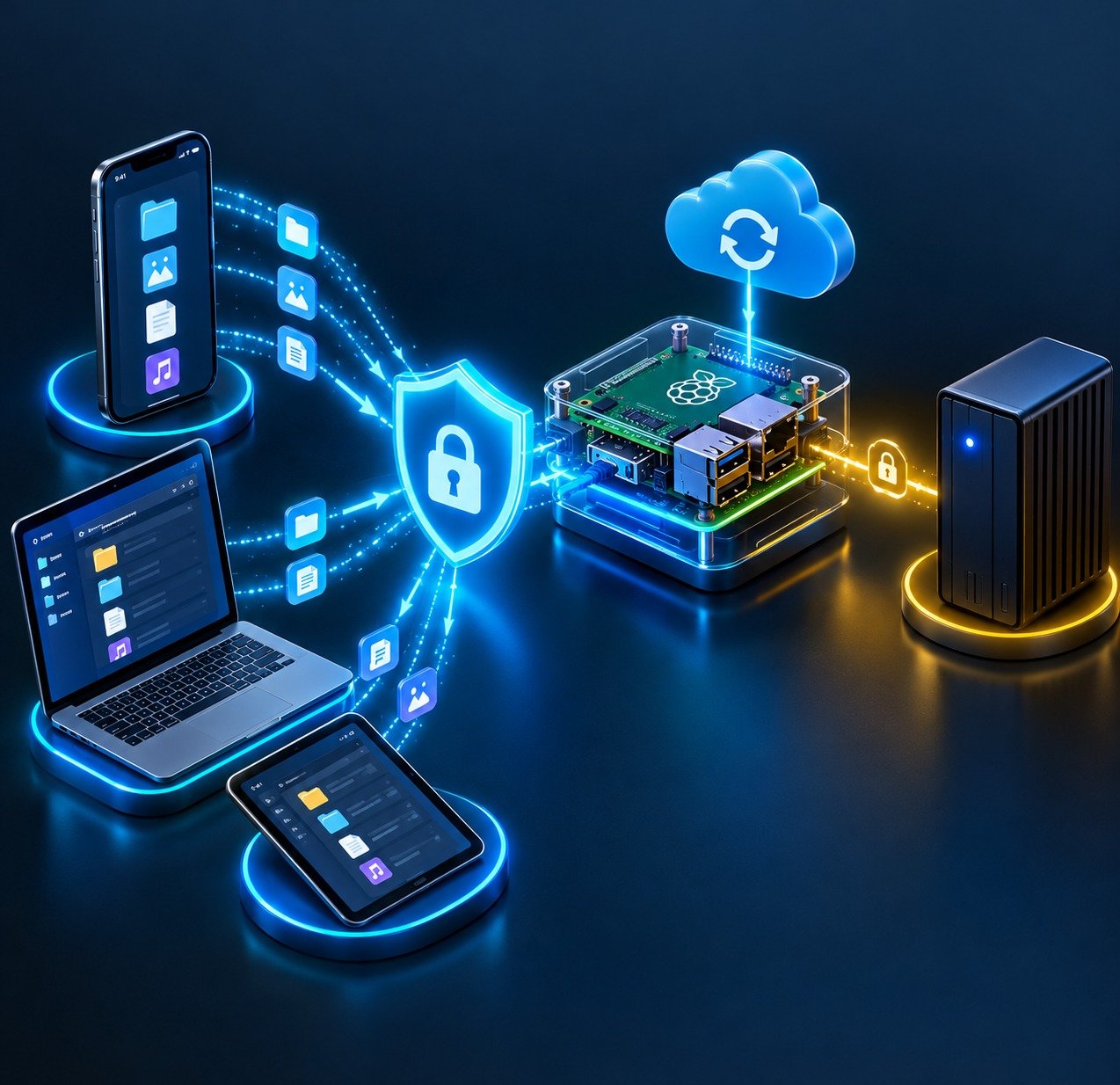
To access your personal cloud securely when away from home, you must secure your connections with HTTPS encryption.
-
Set Up a Free DDNS Domain: Use a free Dynamic DNS provider (like DuckDNS) to link a web domain to your home’s changing public IP address.
-
Obtain SSL Certificates: Configure a reverse proxy (such as Nginx Proxy Manager or Caddy) to fetch free Let’s Encrypt SSL certificates automatically, ensuring all remote data transfers are encrypted.
-
Connect Mobile Apps: Download the free Nextcloud app on iOS or Android, enter your server domain URL, and enable Auto Upload to automatically sync smartphone photos to your home server.
Pairing your personal cloud server with privacy-focused mobile tools is easy when following the best open-source apps on F-Droid to replace daily paid subscription apps. Securing your self-hosted server against unauthorized access aligns with core habits detailed in everyday online privacy and data protection tips. Furthermore, hosting local hardware on your home network builds upon principles from our guide on how to migrate your smart home from cloud to Home Assistant.
Want More Insights to Grow Your Digital Presence & Daily Productivity?
Whether you need to fix your website’s technical performance or build a smarter, burnout-free work routine, NewsUp To delivers practical guides to keep you ahead.



Leave feedback about this