

Working remotely from a cozy coffee shop, an airport lounge, or a hotel lobby is one of the greatest perks of freelancing. Armed with a laptop and a cup of coffee, you can run a global business, manage client accounts, and deliver projects from virtually anywhere.
However, connecting your laptop or smartphone to open public Wi-Fi networks exposes your business to severe security risks. Public networks lack robust encryption, allowing malicious actors on the same network to intercept unencrypted traffic, capture login credentials, or redirect you to fake malicious login portals. For freelancers handling sensitive client files, financial records, or API keys, a single security breach can destroy client trust and result in costly legal liability.
Implementing basic cybersecurity essentials for remote freelancers using public Wi-Fi connections doesn’t require an advanced degree in IT. By adopting a few fundamental tools and security protocols, you can safely work from any public location without compromising your data.
Quick Summary: Public Wi-Fi Safety Rules at a Glance
If you frequently log into client accounts from public Wi-Fi, ensure your laptop enforces these five core security rules:
-
Always Use a Trusted VPN: Encrypt all network traffic through a Virtual Private Network before connecting to public hotspots.
-
Turn Off Auto-Connect and File Sharing: Disable “Connect Automatically” and turn off local file sharing (AirDrop, File Sharing, Bluetooth) in public settings.
-
Verify HTTPS and SSL Connections: Ensure every site you visit uses secure HTTPS encryption before entering passwords or payment details.
-
Enforce Multi-Factor Authentication (MFA): Require a secondary authentication code for all email, cloud drive, and freelancing accounts.
-
Use Mobile Hotspots for Sensitive Tasks: Switch to your phone’s personal cellular hotspot when accessing banking portals or proprietary client databases.
Common Risks of Working on Public Wi-Fi Networks
Understanding how public network vulnerabilities function makes it much easier to guard against them. Public Wi-Fi networks in coffee shops, hotels, and airports are inherently insecure because anyone can join without strict authentication.
The three primary threats targeting freelancers on public Wi-Fi include: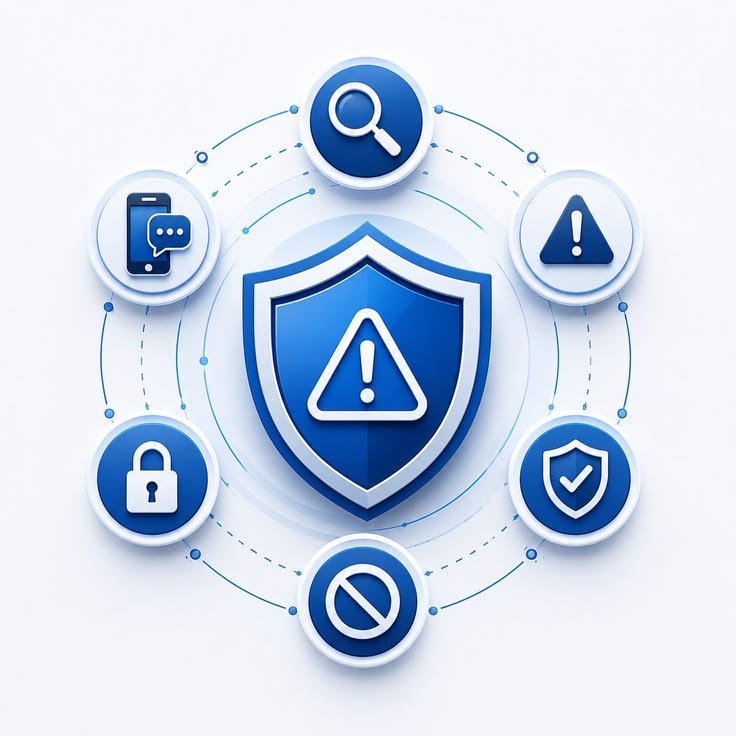
-
Man-in-the-Middle (MitM) Attacks: A hacker positions themselves between your laptop and the router. Instead of communicating directly with the network, your internet traffic passes through the attacker’s device, allowing them to record every unencrypted byte of data.
-
Evil Twin Hotspots: Attackers set up a rogue Wi-Fi network with a name identical to the venue’s official network (e.g., “Starbucks_Guest_Free” instead of “Starbucks_Guest”). Once you connect, the attacker can monitor your browser sessions and capture credentials.
-
Packet Sniffing and Eavesdropping: Using free network monitoring tools, hackers can capture unencrypted data packets transmitted over open Wi-Fi channels, extracting passwords, session cookies, and personal notes.
According to public network advisories published by the Federal Trade Commission (FTC), open public Wi-Fi networks without password-protected WPA3 encryption should always be treated as untrusted environments.
7 Essential Cybersecurity Steps for Remote Freelancers
1. Route All Internet Traffic Through a Virtual Private Network (VPN)
A Virtual Private Network (VPN) is the single most effective defense for remote workers using public networks. A VPN creates an encrypted tunnel between your laptop and a secure remote server, rendering your internet activity completely unreadable to anyone else on the public network.
-
Choose a Reputable Paid VPN: Avoid free VPN services, as many free providers monetize user data or log connection histories. Select established providers with verified no-logs policies, such as NordVPN, ExpressVPN, or Mullvad.
-
Enable a Kill Switch: Turn on your VPN client’s “Kill Switch” feature. This automatically cuts internet access if the VPN connection drops unexpectedly, preventing accidental data leaks.
-
Connect Before Opening Apps: Always connect to your VPN before opening your browser, email client, or messaging applications.
2. Disable Automatic Wi-Fi Connections and File Sharing
By default, modern laptops and smartphones are configured to automatically join known Wi-Fi network names or discover local network devices. In public spaces, these convenience features create massive security holes.
-
Turn Off “Auto-Connect”: Go to your device’s network settings and uncheck “Connect Automatically” for public network profiles.
-
Disable Network File Sharing: Turn off local sharing protocols on macOS (AirDrop, File Sharing) and Windows (Nearby Sharing, File and Printer Sharing). Change your network location profile to “Public” so your firewall blocks inbound network requests.
-
Turn Off Bluetooth When Not in Use: Bluetooth connections can be exploited via localized wireless vulnerabilities. Disable Bluetooth in crowded public places unless actively using wireless peripherals.
3. Require HTTPS and Use DNS Over HTTPS (DoH)
Hypertext Transfer Protocol Secure (HTTPS) encrypts the communication between your browser and the website you are visiting. Modern browsers display a padlock icon or “https://” prefix in the address bar to indicate an encrypted connection.
-
Use Browser Extensions: Install extensions like HTTPS Everywhere or enable your browser’s built-in “Always Use Secure Connections” mode to force encrypted website connections.
-
Enable DNS Over HTTPS: In your browser settings (Chrome, Firefox, or Brave), enable DNS over HTTPS. This prevents bad actors on the local network from viewing the domain names of the websites you visit.
-
Never Ignore Browser Certificate Warnings: If your browser displays a stark warning stating “Your connection is not private” or “Invalid SSL Certificate” when connecting to a public network, close the tab immediately. This often indicates a Man-in-the-Middle attack or an Evil Twin hotspot.
4. Enable Multi-Factor Authentication (MFA) Across All Accounts
Even if a malicious actor captures one of your account passwords via a public network leak, Multi-Factor Authentication (MFA) prevents them from logging in without secondary approval.
-
Use Authenticator Apps: Rely on time-based authenticator apps (such as Google Authenticator, Authy, or 1Password) or physical hardware keys (YubiKey) rather than SMS text messages, which are vulnerable to SIM-swapping attacks.
-
Protect Core Freelance Assets: Enforce strict MFA across your primary email account, password manager, web hosting accounts, client portals, and financial dashboards.
-
Save Backup Recovery Codes: Keep offline physical copies or encrypted backups of your MFA recovery codes in case you lose access to your primary phone.
5. Use a Dedicated Password Manager
Reusing passwords across multiple client portals, freelancing sites, and personal accounts multiplies your security risks. If one site gets compromised on a public network, every account sharing that password becomes vulnerable.
-
Generate Unique Passwords: Use a password manager (such as Bitwarden, 1Password, or Dashlane) to generate and store complex 16+ character passwords for every service.
-
Master Password Protection: Guard your password manager’s master password with extreme care and enforce biometric or hardware-key authentication.
-
Store Client Credentials Securely: Never store client API keys, FTP passwords, or server credentials in plain text documents or unencrypted desktop notes.
6. Protect Physical Privacy with Screen Filters
Cybersecurity is not exclusively digital; physical eavesdropping, known as “shoulder surfing,” is a common way freelancers lose sensitive information in crowded venues.
-
Install a Privacy Screen Filter: Attach a removable privacy filter to your laptop screen. Privacy filters block side-angle viewing, ensuring that only someone sitting directly in front of the screen can read your display.
-
Mind Your Surroundings: Position your back against a wall or pillar when working in busy coffee shops or airport terminals so passersby cannot view your screen or keyboard inputs.
-
Lock Your Device Instantly: Never leave your laptop unlocked and unattended, even for thirty seconds to grab a napkin or order a drink. Use quick keyboard shortcuts (
Win + Lon Windows orCmd + Ctrl + Qon macOS) to lock your screen immediately whenever you step away.
7. Fall Back to Personal Cellular Hotspots for Sensitive Work
While VPNs and HTTPS provide robust protection, processing high-stakes transactions over public Wi-Fi still carries unnecessary risk.
-
Use Smartphone Tethering: When logging into client bank accounts, modifying production server databases, or reviewing highly confidential legal contracts, disconnect from public Wi-Fi and switch to your mobile phone’s encrypted cellular hotspot.
-
Keep Hotspots Password-Protected: Secure your personal mobile hotspot with a strong WPA3 password to prevent unauthorized nearby devices from connecting.
Building a Secure Remote Work Workflow
Integrating cybersecurity habits into your remote work routine ensures that client data protection happens automatically without slowing down your output.
When setting up your workstation, pair network security practices with a clean visual workspace. Organize your computer screen using minimalist digital workspace principles to eliminate desktop distractions, making it easier to keep security apps active and spot suspicious pop-ups immediately.
Additionally, if you are applying for remote technical roles or freelance projects, maintaining a strong cybersecurity posture is a key topic during client vetting. Demonstrating strict data-handling safety when preparing for client applications, similar to the rigor covered in how to pass qualification tests for AI training platforms, reassures clients that their proprietary data remains fully protected in your hands.
Freelancer Public Wi-Fi Safety Checklist
-
Pre-Connection: Activate your VPN, turn off auto-connect features, and disable file sharing and Bluetooth.
-
In-Session: Verify HTTPS padlock icons, use a privacy screen filter, and route sensitive tasks through a mobile hotspot.
-
Account Security: Enforce MFA using authenticator apps, generate unique passwords with a password manager, and lock your screen whenever stepping away.
By combining a reliable VPN, strict password hygiene, and physical awareness, you can safely enjoy the freedom of working remotely from any coffee shop or airport without putting your freelance business or client data at risk.
Want More Insights to Grow Your Digital Presence & Daily Productivity?
Whether you need to fix your website’s technical performance or build a smarter, burnout-free work routine, NewsUpTo delivers practical guides to keep you ahead.



Leave feedback about this